

If you are dealing with ActiveCampaign contacts not syncing, the issue usually comes down to mapping, permissions, automation logic, or integration settings.
When contacts fail to sync properly, the problem can affect email campaigns, automations, segmentation, and reporting. Even a small sync issue can create gaps that are hard to notice until leads are missing from the right list or workflow.
The good news is that most contact sync issues are fixable with a structured review. Instead of guessing, it helps to check the sync path step by step and confirm where the data stops moving.
Introduction
ActiveCampaign sits at the center of many marketing workflows. It often connects forms, websites, ecommerce platforms, CRM tools, landing page builders, and automation systems. Because of that, contact syncing depends on more than one setting working correctly.
If new leads are not appearing, existing records are not updating, or tags and fields are not transferring, the issue may not be with ActiveCampaign itself. In many cases, the problem starts in the source app, in field mapping, or in filters that quietly block data before it reaches your account.
This guide explains the most common reasons contact syncing fails, how to troubleshoot them, and how to build a more stable setup going forward.
Personal Insight
One of the most common mistakes I see is people checking only ActiveCampaign and ignoring the source platform. In practice, sync failures often start before the contact ever reaches your account.
A calm checklist usually works better than random testing. Once you verify the trigger, field mapping, permissions, and duplicate rules, the cause becomes much easier to spot.

What ActiveCampaign contacts not syncing Usually Means
This issue can show up in several ways, and each one points to a slightly different cause.
New contacts are not appearing
A form submission, checkout, or CRM record should create a new contact, but nothing appears in ActiveCampaign. This often points to a broken connection, API issue, failed form action, or missing required field.
Existing contacts are not updating
The contact already exists, but changes made in another system do not appear in ActiveCampaign. This can happen when the sync is set to create only, not update, or when duplicate handling rules prevent updates.
Custom fields are blank or incorrect
The contact record syncs, but important data such as phone number, plan type, or lead source stays empty. This usually comes from incorrect field mapping or mismatched field types.
Tags, lists, or automation entries are missing
A contact reaches ActiveCampaign, but does not get the expected tag, list subscription, or automation enrollment. In that case, the issue may be caused by list settings, automation triggers, conditions, or timing.
Key Features That Affect Contact Syncing
To troubleshoot well, you need to understand which ActiveCampaign features influence how contact data moves.
Contact records and duplicate management
ActiveCampaign identifies contacts primarily by email address. If the same email already exists, the system may update the current record instead of creating a new one. If your source platform sends a variation, typo, or blank email, the sync may fail or create unexpected results.
Custom field mapping
When external tools sync data into ActiveCampaign, each field needs a proper destination. A text field mapped to a date field, or a dropdown value that does not match allowed options, can break part of the sync.
Lists and subscription status
Some integrations only create the contact record, while others also subscribe the contact to a list. If your campaigns or automations depend on list membership, a contact may appear to be missing when it is simply not subscribed where expected.
Tags and automations
Many setups rely on tags to trigger workflows. If the tag is not applied, or if the automation trigger is too narrow, the contact will not enter the next step even though the sync technically succeeded.
API and native integrations
Native integrations are often more stable, but they still depend on valid permissions and updated credentials. API-based tools and third-party connectors can fail silently if tokens expire or if account access changes.

Use Cases Where Sync Problems Commonly Appear
Website forms and lead capture
A visitor submits a form, sees a success message, but the contact never appears. This can happen when the form is not actually connected to ActiveCampaign, when a hidden required field is empty, or when spam filtering blocks the record.
Ecommerce customer syncing
Store platforms may sync customers, orders, and product activity into ActiveCampaign. If only some customers appear, you may be dealing with selective sync settings, disconnected store authorization, or customer records missing required identifiers.
CRM to email marketing workflows
Sales teams often expect new CRM leads to pass into ActiveCampaign automatically. In reality, many CRM integrations use filters such as pipeline stage, owner, or lead status. A record that does not match those conditions may never sync.
Landing page and webinar tools
Third-party lead sources often rely on webhooks or automation middleware. If one step fails, contacts can stop syncing even though the signup page still works for users.
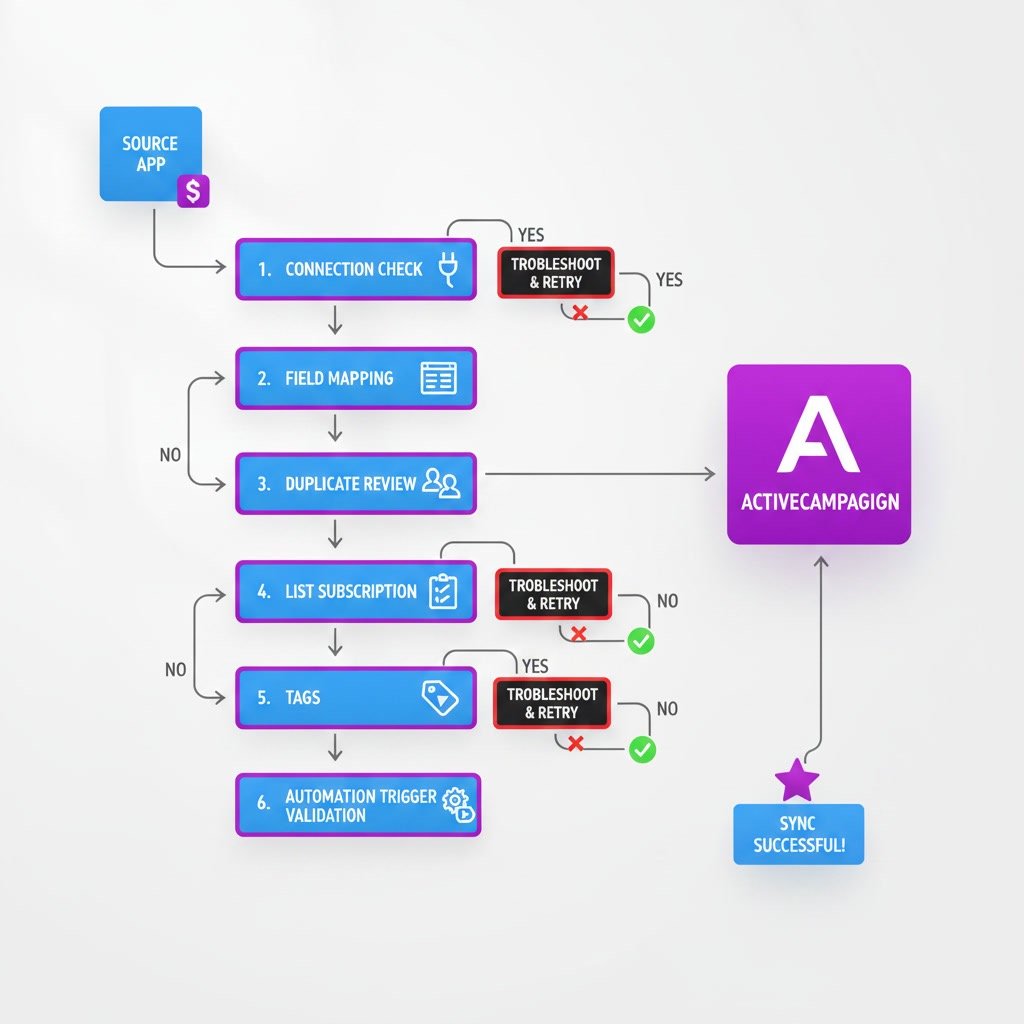
How to Troubleshoot Contact Syncing Step by Step
1. Confirm the contact exists in the source platform
Before checking ActiveCampaign, make sure the contact was actually created in the original tool. Look for the exact email address, submission timestamp, and any validation error messages. If the source record is incomplete, the sync may never start.
2. Check whether the integration is still connected
Open the app or connector that sends data to ActiveCampaign and verify that the connection is active. Re-authenticate if necessary. Expired API keys, changed passwords, or revoked permissions are common causes of interrupted syncing.
3. Test with a brand-new email address
Use a clean test contact that has never been used before. This helps you separate duplicate record behavior from actual sync failure. If a new test contact syncs but an older one does not, duplicate handling or update permissions may be the real issue.
4. Review field mapping carefully
Compare every important field from the source app to the destination field in ActiveCampaign. Check data types, dropdown values, date formats, and required fields. Even one mismatched field can prevent successful updates.
5. Look at list subscription behavior
If the contact exists but is not receiving emails, check whether the integration adds the contact to the correct list. Some workflows create a contact record without subscribing it, which can make it seem like the sync failed.
6. Inspect tags and automation triggers
Verify whether the contact received the expected tag or met the trigger conditions for automation entry. Sometimes the contact syncs correctly, but the workflow does not begin because the trigger requires a specific list, tag, or timing sequence.
7. Review logs, task history, or error notices
Many integration tools provide logs that show whether a sync attempt succeeded or failed. Look for messages related to authentication, field validation, missing required values, rate limits, or permission errors.
8. Check opt-in and consent settings
If double opt-in is enabled, the contact may exist in a pending state until confirmation is completed. This is especially important when forms, ecommerce tools, or compliance settings are involved.
Best Practices for More Reliable Contact Syncing
Use one primary source of truth
Decide which platform owns the core contact record. If multiple apps try to update the same fields at the same time, conflicts become more likely and troubleshooting becomes much harder.
Standardize your field names
Keep field labels and formats consistent across your stack. For example, use one naming pattern for plan level, source, region, or lifecycle stage. Consistency reduces mapping errors and makes future audits easier.
Document your sync logic
Write down which app creates contacts, which one updates them, what tags are applied, and which automations should trigger. This simple documentation saves time when a sync suddenly stops working months later.
Run test contacts after major changes
Any time you update a form, replace an integration, change a custom field, or rebuild an automation, run a test submission. It is much easier to catch an issue immediately than after missed leads pile up.
Audit integrations regularly
Permissions, app versions, and connector settings change over time. A regular check of your connected apps helps you catch problems before they affect live campaigns.
Common Mistakes That Cause Sync Issues
Assuming the form success message means the sync worked
A front-end success notice only confirms the form submitted. It does not guarantee that ActiveCampaign received or processed the contact.
Ignoring duplicate contact rules
If a contact already exists, the sync may update only certain fields or skip the action entirely depending on the integration. This can make it look like nothing happened.
Using the wrong email address during tests
Repeatedly testing with the same address can produce misleading results. A fresh email address gives you a cleaner picture of whether contact creation is working.
Forgetting about required fields
Some integrations need values like email, first name, consent status, or a list assignment. If a required field is missing, the contact may be rejected without an obvious message in ActiveCampaign.
Overlooking automation conditions
People often assume the sync failed when the real issue is that the automation trigger never fired. Always separate contact creation from downstream automation behavior.
When to Escalate the Issue
If you have confirmed the source record exists, the integration is connected, field mapping is correct, and test contacts still fail, it may be time to contact support. Share the exact integration name, test email, timestamp, expected behavior, and any error logs. Specific details make support much faster and more useful.
You should also escalate if the issue started immediately after an API change, plugin update, migration, or account permission change. In those cases, the problem may sit deeper than normal user settings.
FAQ
Why are new contacts not showing up in ActiveCampaign?
The most common reasons are a disconnected integration, invalid API credentials, failed field mapping, missing required values, or duplicate handling behavior in the source app.
Why is a contact syncing but not entering my automation?
The contact may be created correctly, but the automation trigger may depend on a tag, list subscription, field value, or timing condition that was not met.
Can duplicate emails prevent contact syncing?
Yes. If the email already exists, some integrations update the record, while others skip creation or ignore certain fields. Testing with a new email address helps confirm this.
Does double opt-in affect syncing?
It can. A contact may exist in the account but remain unconfirmed or unsubscribed until the opt-in process is completed, which affects list-based campaigns and automations.
What should I check first when contacts stop syncing?
Start with the source platform, then verify the integration connection, test with a new contact, review field mapping, and check list or automation settings.
Final Verdict
If ActiveCampaign contacts are not syncing, the issue is usually practical rather than mysterious. Most problems come from connection errors, field mismatches, list settings, duplicate logic, or automation conditions.
This topic matters most for teams that depend on fast lead routing and accurate audience data. A clear troubleshooting process helps you restore sync reliability quickly and avoid missed contacts in the future.
Affiliate disclosure: This article may contain affiliate links. If you purchase through these links, we may earn a commission at no additional cost to you.
Recommended Guides
- Activecampaign Integration Guide
- Activecampaign Tracking Not Working
- ActiveCampaign Automation Examples: Real Workflows Explained
- Activecampaign Ultimate Guide