

If you want to learn How to Create Videos with Synthesia, this guide will walk you through the full process in a clear, practical way.
AI video tools have made it much easier to produce presenter-style videos without filming yourself, hiring talent, or building a full studio setup. Synthesia is one of the best-known platforms in this category because it focuses on speed, consistency, and business-friendly video creation.
This guide explains what Synthesia does, how the workflow works, where it performs well, and where its limits still matter. Whether you are making training videos, internal communication, product explainers, or social content, understanding the platform properly will help you get better results faster.
Affiliate disclosure: This article may contain affiliate links. If you purchase through these links, we may earn a commission at no additional cost to you.
Introduction
Synthesia is designed to help people create AI-generated videos using digital presenters, voiceovers, templates, and simple scene-based editing. Instead of filming a real person on camera, you can type a script, choose an avatar, select a language or voice, and Synthesia can help teams produce presenter-led videos without arranging a traditional video shoot. It is especially useful for training, internal communications, product explainers, onboarding, and repeatable business updates.
However, professional results do not come from selecting an avatar and pasting text into a scene. The quality of the final video depends on planning, script structure, visual consistency, pacing, and a review process that catches issues before publication.
Affiliate disclosure: This article may contain affiliate links. If you purchase through these links, we may earn a commission at no additional cost to you.
Practical Take
Synthesia is most effective when treated as a production workflow rather than a shortcut for creating content instantly. A concise script, a consistent visual template, and careful preview reviews usually have more impact on quality than adding extra scenes, effects, or on-screen text. a polished video in a relatively short time.
For many teams, the appeal is obvious. It reduces production time, lowers recurring video costs, and makes it easier to update content when details change. That matters for training, onboarding, marketing, and customer education, where information often needs regular revisions.
At the same time, Synthesia is not a full replacement for every type of video production. The platform works best when you understand both its strengths and its boundaries. This article gives you a balanced overview so you can decide when to use it and how to use it effectively.
Quick Answer
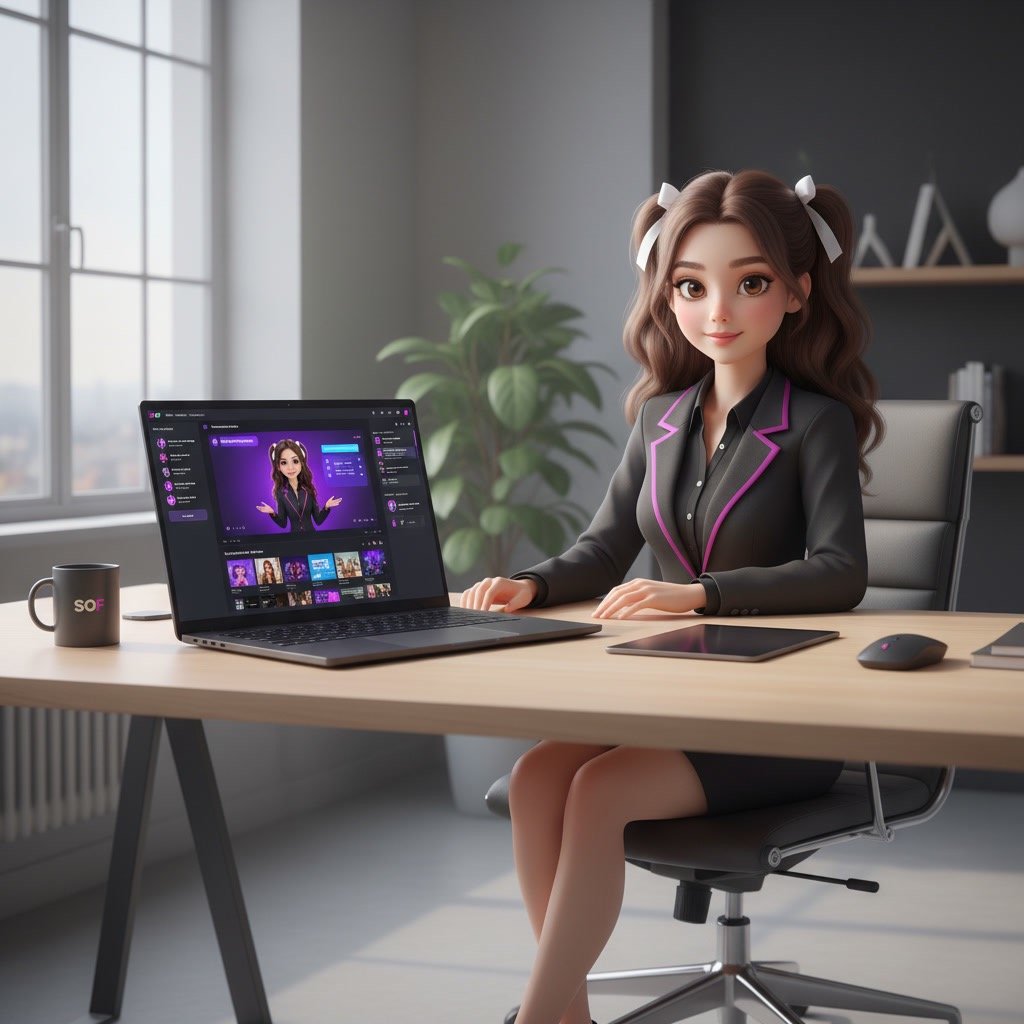
To create a professional Synthesia video, begin with one defined audience and one clear outcome. Write a conversational script, divide it into short scenes, choose an appropriate avatar and voice, use a restrained brand template, then preview every scene for pacing, pronunciation, and readability before exporting.
Topic Definition
A Synthesia video is an AI-generated video that typically combines a digital presenter, voice narration, text, images, screen recordings, and branded visual elements. Instead of filming a person on camera, you build scenes within the platform and generate the finished video from your script.
For professional use, the goal is not simply to make the video look polished. The goal is to communicate information clearly, maintain brand consistency, and give viewers a useful next step.
Why This Matters
Business videos often need to be updated more frequently than traditional production allows. A policy change, new product feature, revised training process, or localized announcement can require a new version quickly. A structured Synthesia workflow makes those updates easier to manage.
It also reduces a common production risk: creating a visually attractive video that is difficult to follow. When viewers cannot understand the message, the video has not achieved its purpose, regardless of how refined the design appears.
How to Create Videos with Synthesia for Professional Results
1. Define the video’s single purpose
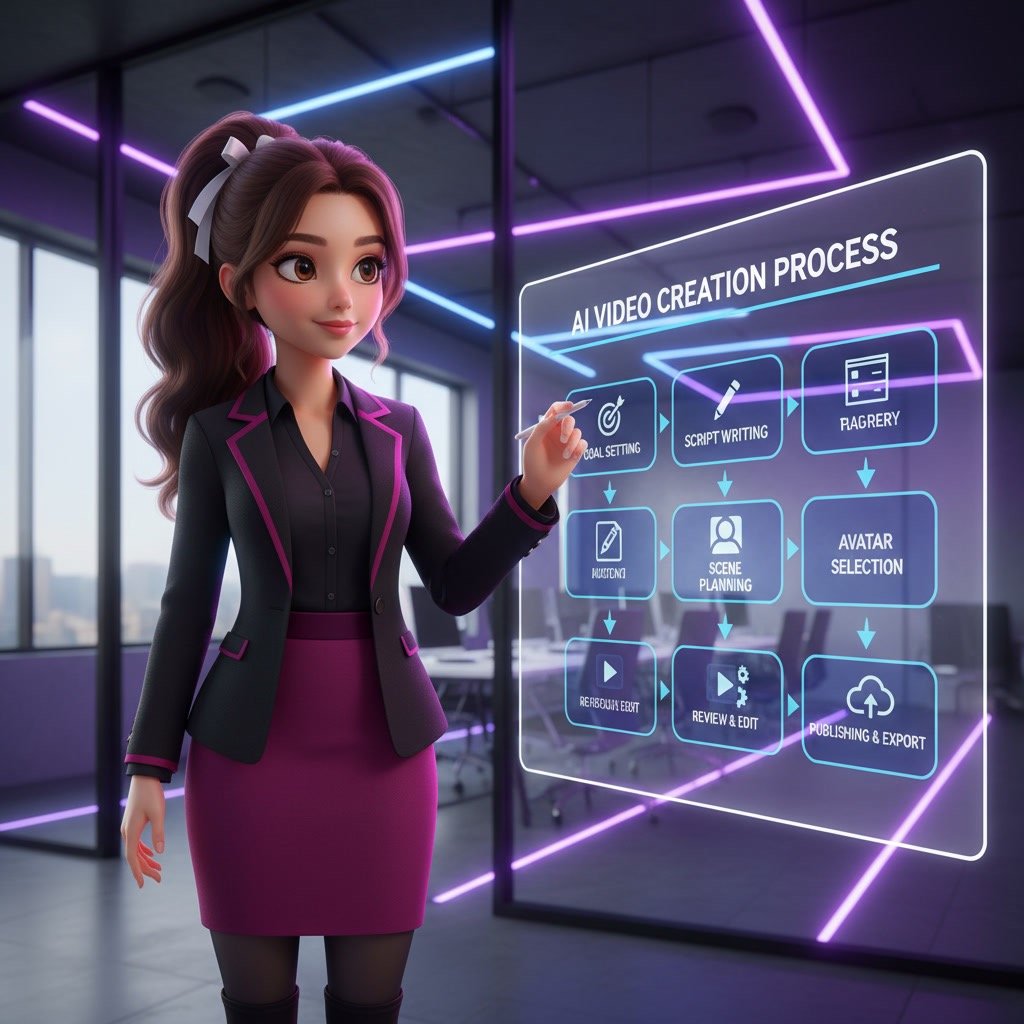
Start with a short production brief before opening Synthesia. Identify the audience, the problem the video should solve, the main message, and the action viewers should take afterward.
For example, an employee onboarding video may aim to explain how to submit an expense report. A customer-facing product video may aim to show one feature and direct viewers to a trial or help center. Avoid combining several unrelated goals in one short video.
2. Write for spoken delivery, not for a document
AI narration works best with concise, natural sentences. Write as if a helpful colleague is explaining the topic aloud. Replace long clauses with shorter statements, and introduce technical terms only when the audience needs them.
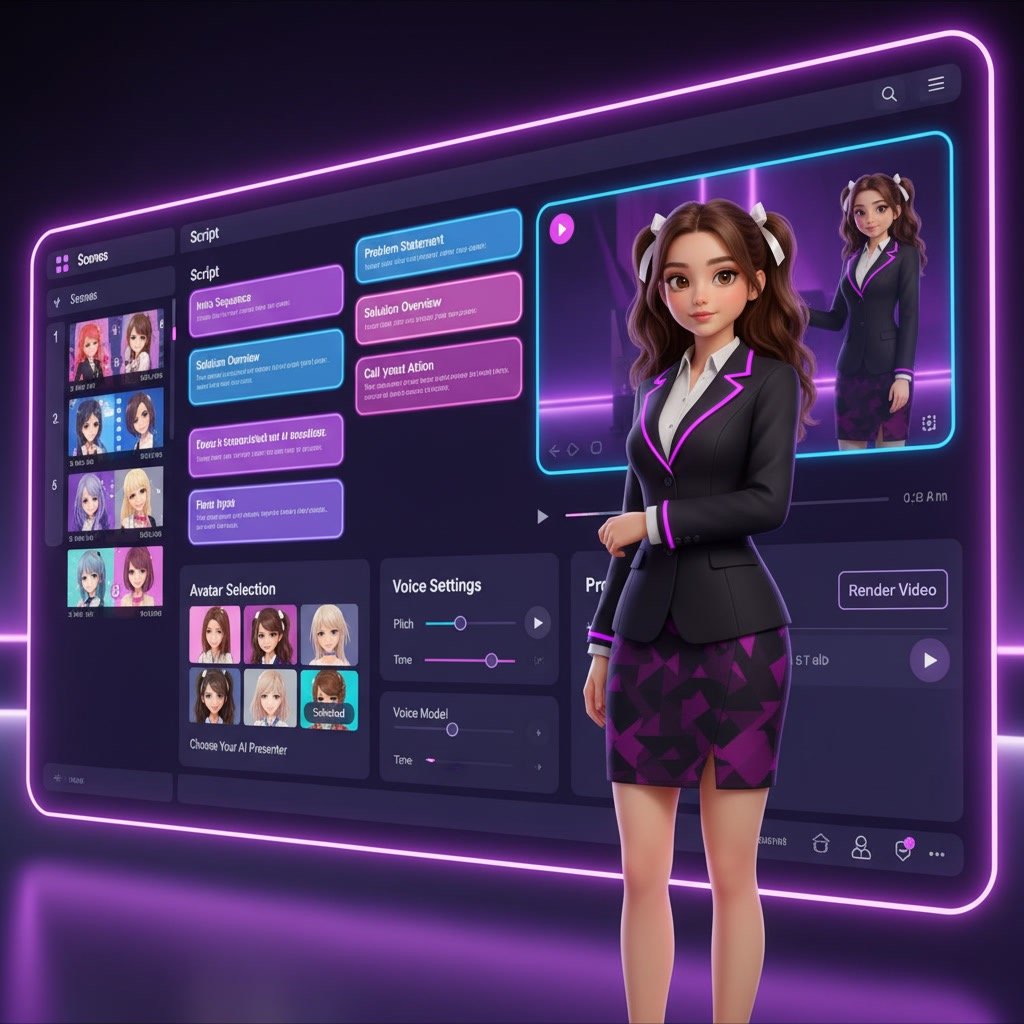
A practical structure is: state the problem, explain the solution, demonstrate the key steps, and close with a clear next action. Each scene should usually communicate one idea. If a scene contains several instructions, split it into separate scenes.
3. Build a scene outline before designing
Create a simple scene map in your draft. For a two-minute product tutorial, that may include an opening statement, a quick overview, three workflow steps, a recap, and a closing call to action.
This planning step prevents two common issues: scenes that run too long and visuals that repeat the narration without adding useful context. The narrator should explain; the screen should support understanding.
4. Choose an avatar that fits the context
Select an avatar based on the audience and the role the video needs to play. A formal compliance update may benefit from a restrained, professional presentation style. An internal learning video may allow a more conversational option.
Use the same avatar across related videos when possible. Consistency helps viewers recognize the series and reduces the feeling that each video was created from a different source.
5. Select voice, language, and pronunciation settings carefully
Choose a voice that matches your audience and content type. Prioritize clarity over novelty. For training and instructional content, a steady voice and moderate pace are usually easier to follow than an overly expressive delivery.
Preview names, product terms, abbreviations, and industry language early. If a word is pronounced incorrectly, revise the spelling or use the platform’s available pronunciation controls where appropriate. Do not wait until the full video is complete to check technical terms.
6. Apply a simple visual system
Use a limited set of brand colors, one or two fonts, and a consistent layout. Keep text readable at normal viewing size, especially for viewers watching on smaller screens.
Place the avatar where it does not cover important visual information. If you are showing a software interface or diagram, reduce the avatar size or use an avatar-free scene so viewers can focus on the content.
7. Add supporting media with a clear purpose
Use screenshots, screen recordings, icons, charts, or product images only when they clarify the narration. A screen recording is useful when you need to demonstrate a process. A simple diagram can be useful when explaining a workflow or decision path.
Avoid filling every scene with movement. Unnecessary transitions and decorative elements can make an instructional video harder to scan and more difficult to update later.
8. Preview, review, and export
Generate a preview and review it in two passes. First, watch for message flow: does each scene lead naturally to the next? Second, check execution details such as pronunciation, text cutoffs, visual alignment, timing, and brand accuracy.
Ask a colleague who represents the target audience to review important external, training, or compliance content. They may spot unclear wording that is invisible to the person who wrote the script.
Real Use Cases
Employee onboarding and training
This is one of the strongest use cases. HR teams, operations teams, and learning departments can create structured onboarding content without organizing repeated live presentations. Updates are also easier when policies or processes change.
Internal communications
Leaders and managers can use Synthesia for company updates, change announcements, and process rollouts. It gives teams a consistent format and can be useful for distributed organizations that need scalable communication.
Customer education and support
Support teams can create help videos, walkthroughs, and product guides. These videos can explain common tasks clearly while reducing the burden on live support channels.
Marketing and sales enablement
Marketing teams can use the platform for basic product explainers, campaign support videos, landing page content, and personalized outreach at scale. Sales teams may also create internal training assets or client-facing demos, especially when speed is more important than cinematic production value.
Multilingual content
One of the most practical benefits is producing videos in multiple languages without re-filming. For global teams, this can improve consistency and reduce localization effort.
Performance Benchmarks
Performance with Synthesia should be judged by workflow efficiency and output fit, not by whether it fully replaces a professional studio. In the right scenarios, it can dramatically reduce turnaround time from days or weeks to hours. That alone is a major operational advantage for many teams.
Speed
Compared with traditional video creation, Synthesia is usually much faster for script-based presenter videos. The time savings come from removing filming, retakes, setup, and much of the editing process.
Consistency
Consistency is one of the platform’s biggest strengths. The same avatar, branding, and format can be reused across many videos, which is valuable for training libraries and business communications.
Quality expectations
The output is generally polished enough for professional business use, but it still has a recognizable AI-video style. Viewers often accept this without issue when the content is useful, clear, and visually supported. Problems usually appear when users expect deep emotional expression or highly cinematic realism.
Integrations
Integrations matter because video creation rarely happens in isolation. Businesses often need to connect content workflows to learning systems, collaboration tools, knowledge bases, or marketing platforms.
Depending on the plan and available features, Synthesia may fit into broader training and content operations through exports, team collaboration, and workflow support. Even when direct integrations are limited, the platform can still work well as part of a practical create-review-publish process.
Where integrations add the most value
Training teams benefit when videos can be embedded into LMS platforms or internal knowledge systems. Marketing teams benefit when finished assets are easy to publish across websites, email campaigns, sales presentations, or support centers. The more standardized your content workflow is, the more value you tend to get from Synthesia.
Key Features to Use Deliberately
Avatars and presenter placement
Avatars create a presenter-led format without a camera setup. Use them when a human guide improves attention or makes instructions easier to follow. For detailed demonstrations, consider alternating between presenter scenes and full-screen visual scenes.
Templates and brand controls
Templates can speed up repeatable content such as monthly updates, employee announcements, and course modules. Create a master layout with approved colors, logo placement, typography, and closing slides so future videos begin from a consistent base.
Screen recordings and media uploads
For software education, screen recordings often provide more value than decorative images. Crop recordings to the relevant area, enlarge critical interface elements, and avoid showing unnecessary personal data, browser tabs, or notifications.
Captions and translated versions
Captions improve accessibility and help viewers who watch without sound. When creating language versions, review the translated script for local terminology, tone, dates, measurements, and product names rather than assuming a direct translation is ready to publish.
Best Practices for Better Business Videos
- Keep most scenes focused on one message and one visual purpose.
- Use short paragraphs and natural pauses in the script.
- Put the most important information in the first 15 to 20 seconds.
- Use on-screen text for key terms, steps, or numbers rather than full narration transcripts.
- Maintain consistent backgrounds, typography, and avatar placement across a video series.
- End with one clear action, such as completing a training task, visiting a resource, or contacting a team.
A useful quality check is to mute the video briefly. If the visual sequence still makes sense, the scenes are doing their supporting job. Then listen without watching. If the narration still communicates the core message, the script is strong enough to stand on its own.
Advanced Tips for More Polished Output
Create modular video blocks
Build recurring sections as reusable blocks: introduction, agenda, product update, next steps, and closing slide. This makes it easier to update a single section without rebuilding an entire video. It also helps larger teams maintain a more consistent output.
Use a script review checklist
Before generation, check whether the script uses acronyms without explanation, contains long sentences, repeats key points, or includes claims that need approval. This review is particularly important for regulated industries, customer communications, and executive messaging.
Design for multiple viewing environments
Many workplace videos are watched on laptops, mobile devices, or inside learning platforms. Use large text, sufficient contrast, and uncluttered layouts. If a screenshot contains small details, consider breaking it into two scenes rather than shrinking it to fit.
Measure usefulness, not just completion
Views and completion rates are useful signals, but they do not confirm understanding. For training videos, follow up with a short knowledge check or a practical task. For product videos, review whether viewers reach the intended support article, demo request, or feature page.
Troubleshooting Common Synthesia Video Problems
The narration sounds rushed or unnatural
Shorten the sentences and remove stacked instructions. Add punctuation where a natural pause is needed, then regenerate the affected scenes. If the voice still feels too fast, reduce the amount of information in each scene rather than trying to force a dense script into a short runtime.
The avatar covers important content
Move the avatar to the opposite side, reduce its size, or switch to a full-screen visual scene. Do not place the presenter over interface fields, chart labels, or instructional text that viewers need to read.
Text is difficult to read
Increase font size, reduce the number of words, and improve contrast between text and background. Avoid placing essential text over complex images or video clips. If the sentence is important enough to display, it should be easy to read within a few seconds.
The video feels repetitive
Vary the scene format while keeping the design system consistent. Alternate between avatar-led explanation, screenshots, diagrams, and concise text slides. The change should support the message, not serve as decoration.
The final version contains incorrect details
Use a final approval checklist for names, dates, links, product references, and policy statements. For content that changes often, keep the source script and media files organized so updates can be made without reconstructing the video from memory.
Related Topics
- How to write scripts for AI-generated training videos
- How to create effective employee onboarding videos
- Best practices for video localization and multilingual learning content
- How to use screen recordings in product tutorials
- How to build a reusable video content template for business teams
Who Should Use This
Synthesia is best for businesses, educators, trainers, consultants, and teams that need professional-looking videos quickly and consistently. It is especially useful when your content is structured, repeatable, and informational.
Best fit users
- HR and L&D teams creating onboarding and training videos
- Marketing teams making explainers and campaign support content
- Customer success and support teams producing help videos
- Operations teams sharing process updates
- Consultants and agencies building scalable client content
Less ideal users
If you need deeply edited storytelling, highly expressive performances, or visually complex motion design, Synthesia is probably not your only tool. In those cases, it works better as one part of a wider production stack rather than the entire solution.
Alternatives
There are several AI video tools on the market, and the right choice depends on your priorities. Some focus more on avatar realism, some on editing flexibility, and others on quick social video output.
When to consider alternatives
If you need more creative control, stronger video editing, different avatar styles, or a lower entry point for simple projects, it makes sense to compare options. Businesses should also compare collaboration, compliance expectations, and scalability before choosing a platform.
How Synthesia compares in broad terms
Synthesia is generally strongest when professional business communication is the main goal. It has a reputation for usability, consistency, and enterprise-friendly use cases. Some competitors may offer strengths in personalization, visual flexibility, or specific creator-focused workflows, but Synthesia remains one of the most established options for structured AI presenter videos.
Quick Decision Table
| Situation | Recommended approach |
|---|---|
| You need a short internal update | Use a simple avatar-led template with three to five scenes and one clear action. |
| You are explaining software steps | Use screen recordings as the primary visual, with the avatar only for introductions and transitions. |
| You need multiple language versions | Finalize the original script first, then review each localized version for terminology and pronunciation. |
| You are building a training series | Create a master template, recurring scene blocks, and a shared script review process. |
| Your first draft feels too long | Remove secondary points and divide dense explanations into separate videos. |
FAQ
How long should a professional Synthesia video be?
Most instructional or update videos work best when they are as short as the message allows. Aim for one focused topic per video, and split longer training subjects into smaller modules.
Can Synthesia videos include screen recordings?
Yes. Screen recordings are useful for product demos, software training, and process walkthroughs. Keep recordings tightly cropped and make important interface details large enough to read.
Should every Synthesia scene include an avatar?
No. Use an avatar when a presenter adds clarity or continuity. Use full-screen screenshots, diagrams, or text scenes when viewers need to focus on detailed visual information.
How can I improve AI voice pronunciation?
Preview names and technical terms before generating the full video. Adjust spelling, add punctuation for pauses, and use available pronunciation settings when needed.
What makes an AI-generated video look less professional?
Common causes include overly long scripts, small text, inconsistent layouts, unnecessary animation, incorrect pronunciations, and visuals that do not support the narration.
Do I need captions on a Synthesia video?
Captions are strongly recommended for accessibility and for viewers who watch with sound muted. Review them to ensure names, technical terms, and key instructions are accurate.
Final Verdict
Synthesia is a practical option for teams that need repeatable, presenter-led videos without relying on frequent camera-based production. It is particularly well suited to structured training, internal communications, product education, and content that requires regular updates or localized versions.
The main trade-off is that the platform cannot replace weak planning. A polished avatar will not solve an unclear script, crowded visuals, or an unfocused message. Teams that need highly emotional storytelling, live demonstrations, or distinctive human performance may need filmed video alongside AI-generated content.
The practical decision rule is simple: use Synthesia when a clear script and repeatable format matter more than a traditional filmed presentation, then invest your effort in message structure, scene design, and careful review.
Recommended Guides
- Synthesia vs HeyGen
- Synthesia Pros and Cons
- Is Synthesia Worth It
- Best Use Cases for Synthesia
- Synthesia Features Explained
- Is Synthesia Safe and Legal
- How Accurate is Synthesia AI
- Can Synthesia Replace Video Editing
- Is Synthesia Good for Business
- Is Synthesia Good for YouTube
- Synthesia Tutorial for Beginners
- Best AI Video Generators for Business