

If you are dealing with ActiveCampaign email not sending issues, the good news is that most causes are identifiable and fixable.
Affiliate disclosure: This article may contain affiliate links. If you purchase through these links, we may earn a commission at no additional cost to you.
Introduction
When an email does not go out in ActiveCampaign, it can feel frustrating fast. You may have spent time building the campaign, setting up the automation, and checking your audience, only to find that nothing was delivered.
In many cases, the problem is not a major platform failure. It is usually tied to list settings, automation conditions, sender authentication, approval status, scheduling, or contact eligibility.
This guide breaks the issue into simple parts so you can troubleshoot with confidence. Whether you are sending a one-time campaign or running an automated workflow, the goal is to help you find the block, fix it, and prevent it from happening again.
Personal Insight
One of the most common email platform issues I see is assuming the problem is technical when it is actually a setup detail. A campaign can look fully ready while one missed condition quietly stops the send. The fastest wins usually come from checking the basics in order instead of jumping straight into advanced fixes.

What Is Happening When ActiveCampaign Does Not Send Emails?
Not all sending problems mean the same thing. Sometimes the email never starts sending. Other times it sends to only part of the list, gets delayed, lands in spam, or is blocked by a compliance or domain issue.
That is why the first step is identifying which type of problem you are seeing. Here are the most common scenarios:
- The campaign is still in draft and was never actually scheduled or sent.
- The automation is active, but contacts are not reaching the email step.
- The contacts do not meet the segment or trigger conditions.
- The sender email or domain is not authenticated properly.
- The account is under review or limited due to compliance checks.
- The email was sent, but deliverability is poor, so it appears not to be sending.
Once you know which category fits your situation, troubleshooting becomes much easier.
Key Features That Affect Email Sending
Campaign builder settings
Your campaign settings determine whether the email is ready to go. This includes the recipient list, subject line, sender details, scheduled time, and status. A missed option in the campaign builder can stop delivery before it starts.
Automation triggers and conditions
Automations only send when a contact enters the workflow and reaches the send email action. If the trigger does not fire, or if a wait condition, goal, tag rule, or if-else path blocks progress, the message will not go out.
Contact status and list eligibility
ActiveCampaign will not send to unsubscribed, bounced, or excluded contacts. If your audience is smaller than expected, check whether contacts are active, subscribed, and still part of the target segment.
Domain authentication
Authentication records such as SPF, DKIM, and sometimes DMARC help verify that your sending domain is legitimate. Without them, your emails may face delivery problems or reduced trust from inbox providers.
Account review and compliance checks
Email platforms monitor sender quality to protect deliverability. If your account is new, your list quality is unclear, or a campaign triggers a compliance review, sending may pause until the issue is resolved.
ActiveCampaign email not sending: The Most Common Reasons
The campaign was not fully scheduled
This sounds obvious, but it happens often. A campaign may be saved after setup without being confirmed for send. Double-check the campaign status to make sure it is actually scheduled or sent, not sitting in draft.
The automation is active, but contacts are stuck
In automation workflows, contacts can get delayed by wait steps, date conditions, split paths, goal logic, or trigger limitations. If the automation is on but no email is sent, review the contact path inside the workflow.
Your segment is too narrow
If you use multiple filters, tags, list conditions, or custom field rules, the audience may become much smaller than expected. In some cases, the segment can end up with zero eligible contacts.
Contacts are unsubscribed or excluded
Even if a contact exists in your account, they may not be sendable. Check for unsubscribed status, bounce history, exclusion lists, or consent restrictions that prevent sending.
The sender email address is not verified
If your sender address has not been confirmed or your domain is not properly authenticated, sending may be delayed, restricted, or more likely to face inbox placement issues.
The account is still being approved
New accounts or accounts with unusual sending patterns may go through review. During that time, some sending functions can be limited until the platform confirms compliance and sender quality.
The email was sent but not delivered well
Sometimes users assume sending failed when the campaign actually went out but performed poorly. Low deliverability, spam folder placement, and inbox filtering can make a sent email appear invisible.

Use Cases: Where This Problem Usually Shows Up
Welcome email automations
A new subscriber joins your list, but the welcome email never arrives. This is often caused by a broken trigger, double opt-in timing, list mismatch, or a contact not meeting the automation entry rules.
Newsletter campaigns
You create a one-time campaign for your full list, but the send count is lower than expected. In these cases, segmentation filters, unsubscribes, and contact status are common causes.
Sales follow-up sequences
A contact fills out a form, but the follow-up automation never sends. This usually points to trigger setup, pipeline logic, tag application, or CRM-action dependencies.
Timed promotions
A campaign scheduled for a launch or event may miss its send window because of timezone settings, incomplete scheduling, or delays caused by a pending review.
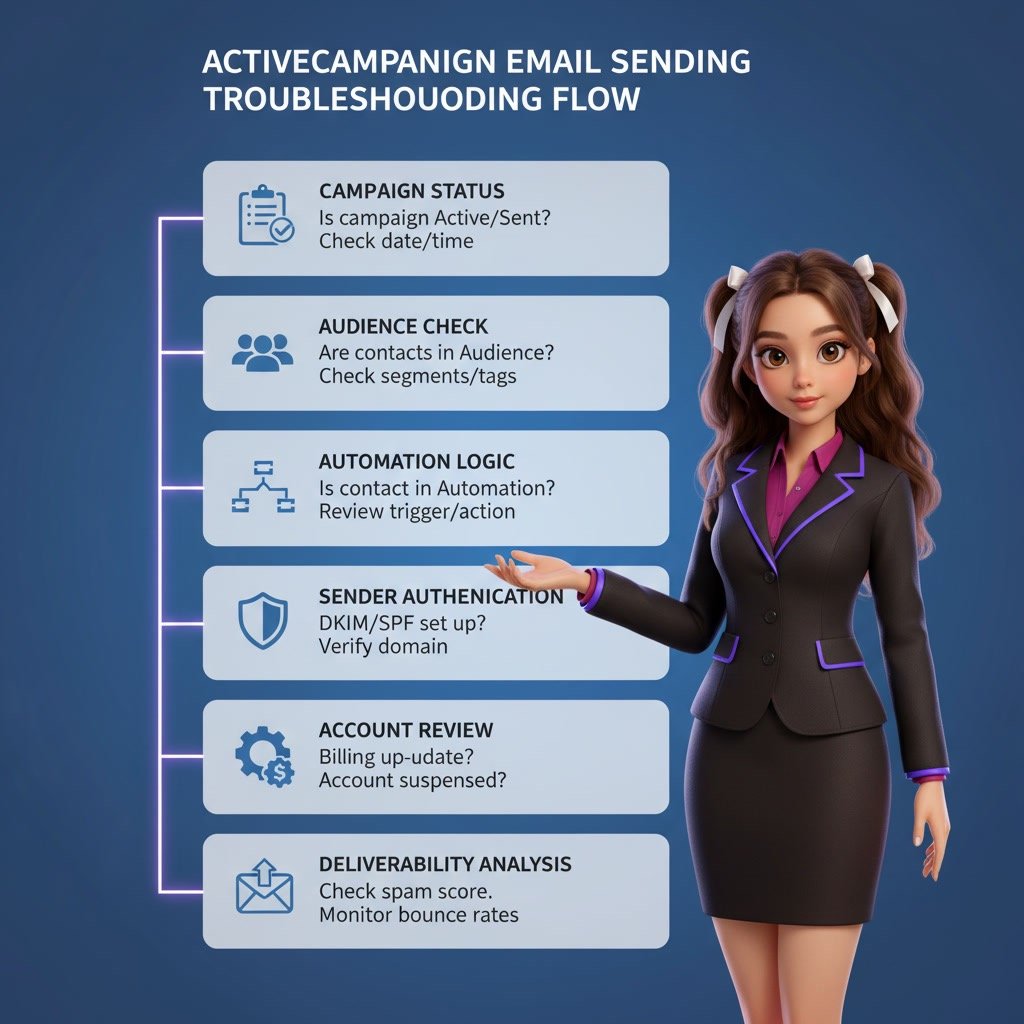
How to Troubleshoot the Issue Step by Step
1. Check the send status first
Start with the simplest check. Look at the campaign or automation email status. Is it draft, scheduled, paused, active, completed, or sent? This tells you whether the problem is setup, timing, or delivery.
2. Confirm the audience size
Review the contact count attached to the campaign or automation. If the number is unexpectedly low, inspect list filters, tags, segment rules, exclusions, and subscription status.
3. Test with a known contact
Add a test contact that clearly meets the required conditions. If the test contact receives the email, the issue is probably related to audience logic rather than platform sending.
4. Review the automation path
Open the automation and trace the exact route a contact should take. Look for wait conditions, goals, if-else branches, and entry rules that might be stopping progress.
5. Verify sender and domain settings
Check whether your from address is valid and whether your sending domain has proper authentication. If SPF and DKIM are missing or misconfigured, fix those records as soon as possible.
6. Look for account notices
If ActiveCampaign is reviewing the account or has flagged a compliance concern, there is usually a notice in the dashboard or account area. Resolve that before changing everything else.
7. Check reporting before assuming failure
Sometimes the platform shows the campaign as sent, but open rates are very low because the message landed outside the primary inbox. Review reports, bounce data, and spam-related indicators.
Best Practices to Prevent Sending Problems
Authenticate your domain early
Set up SPF and DKIM before you start sending at volume. This improves trust and reduces confusion when diagnosing delivery issues later.
Keep automations simple at first
Complex workflows are useful, but they are harder to debug. Start with a straightforward version, test it thoroughly, and only then add more conditions and branches.
Use clear tags and naming
If your automation depends on tags, custom fields, or goals, use names that make the logic easy to understand. Clean naming reduces setup errors and saves time during troubleshooting.
Test every campaign before launch
Send test emails, preview personalization, and confirm segment size before final scheduling. A short test routine catches many common issues before they affect real subscribers.
Maintain list quality
High bounce rates and low engagement can lead to deliverability issues. Remove invalid contacts, use confirmed opt-ins when needed, and avoid importing low-quality lists.
Watch automation entry rules closely
An automation can be perfectly built but never used if the trigger is too narrow or fires only once. Make sure your entry rules match real contact behavior.
Common Mistakes That Lead to No Sends
Forgetting to activate the automation
Building the workflow is not enough. If it stays inactive, no contact will move through it.
Using the wrong list or segment
It is easy to send to the wrong audience or to create a segment so strict that no contacts qualify.
Skipping sender authentication
Many users treat this as optional, but it is one of the most important steps for reliable delivery.
Assuming all contacts are sendable
Subscribed, bounced, unsubscribed, and excluded contacts are not the same. Always check actual eligibility.
Adding too many conditions too soon
Multiple tags, goals, waits, and branches may look organized, but they increase the chance of blocking contacts unintentionally.
Ignoring account alerts
If the platform shows a notice about compliance or review, that should be addressed immediately. Otherwise, you may keep editing campaigns while the real blocker remains unchanged.
When to Contact Support
If you have checked campaign status, automation logic, audience size, sender authentication, and account notices, but the issue still remains, it is time to contact support. Be ready to share the campaign name, automation name, affected contact examples, screenshots of settings, and what you already tested.
This speeds up the investigation and helps support identify whether the problem is account-specific, technical, or related to deliverability.
FAQ
Why is my ActiveCampaign automation not sending emails?
The most common reasons are inactive automations, broken triggers, wait conditions, goal logic, or contacts not meeting entry requirements. Review the contact path inside the automation to see where progress stops.
Why does my campaign show fewer recipients than expected?
This usually happens because of segment filters, unsubscribed contacts, bounced addresses, exclusions, or list mismatches. Check the exact audience rules attached to the campaign.
Can domain authentication affect whether emails send?
Yes. Poor or missing authentication can lead to sending restrictions, lower trust, or inbox placement issues. It may not always block sending entirely, but it can strongly affect delivery.
How do I know if the issue is sending or deliverability?
Check your campaign reports. If the platform shows the campaign as sent, then the issue may be deliverability rather than send initiation. Review bounce data, opens, and spam placement indicators.
Should I rebuild the campaign from scratch?
Only after checking the basics. Most issues come from settings, logic, or eligibility, not from a broken campaign file. Rebuilding can help in rare cases, but it should not be your first step.
Final Verdict
If your ActiveCampaign emails are not sending, the cause is usually something practical rather than mysterious. Start with status, audience, automation flow, sender setup, and account alerts. That simple sequence solves most problems faster than making random changes.
This topic matters most for marketers, business owners, and teams using automations regularly. If you want more consistent results, focus on clean setup, tested workflows, and proper domain authentication from the beginning.
Recommended Guides
- How To Use Activecampaign
- Activecampaign Setup Guide
- Activecampaign Campaign Builder Guide
- ActiveCampaign Segmentation Guide: Target the Right Audience
- Activecampaign Ultimate Guide