

If your ActiveCampaign api not working issue is blocking automations, syncs, or custom workflows, this guide will help you troubleshoot it step by step.
Affiliate disclosure: This article may contain affiliate links. If you purchase through these links, we may earn a commission at no additional cost to you.
Introduction
When the ActiveCampaign API stops working, the effects can show up everywhere. Contacts may fail to sync, automations may not trigger, forms may stop passing data, and custom apps can suddenly return errors that are hard to interpret.
The tricky part is that API problems are rarely caused by one thing alone. In many cases, the issue comes down to an expired key, the wrong endpoint, a formatting mismatch, rate limits, or a permissions problem between systems.
This article breaks the process into practical steps. Instead of guessing, you can work through the most likely causes in order and identify what is actually failing, where it is failing, and what to do next.
Personal Insight
One of the most common patterns I see with API issues is that people assume the platform is down when the problem is really a small setup detail. A single incorrect base URL, outdated field name, or missing header can quietly break an otherwise solid integration. The fastest path is usually to simplify the test, confirm one successful request, and rebuild confidence from there.

What Is the ActiveCampaign API and Why It Fails
The ActiveCampaign API allows external tools, websites, and internal systems to send and receive data from your account. That includes creating contacts, updating tags, triggering automations, syncing deals, and reading campaign or list data.
When it works well, it feels invisible. When it fails, the issue often appears in another tool first. You may notice Shopify orders not creating contacts, your CRM not updating records, a landing page failing to submit subscribers, or a custom script returning a 401 or 404 response.
API failures usually fall into a few main categories:
- Authentication problems such as an invalid API key
- Endpoint mistakes such as using the wrong account URL
- Request formatting errors in headers, JSON, or field structure
- Permissions or account-level restrictions
- Rate limiting due to too many requests in a short period
- Third-party integration issues that are blamed on ActiveCampaign
- Temporary outages or sync delays
Key Features That Help You Troubleshoot Faster
API URL and account-specific endpoint
ActiveCampaign does not use one universal endpoint for every account. Your API request must point to your own account URL. If your script, plugin, or integration uses the wrong domain or an old URL, requests can fail even if the API key is correct.
API key authentication
Most integrations depend on the account API key being entered exactly as provided. A copied space, an outdated key, or using the wrong account’s credentials can stop requests immediately.
Structured JSON requests
Many failures come from malformed payloads. A missing nested object, wrong field name, or invalid email format can produce an error response or cause the receiving tool to reject the request before it reaches ActiveCampaign properly.
Response codes and error messages
If you are not checking the response body and status code, you are troubleshooting blind. A 401, 403, 404, 422, or 429 each points to a different problem. Even a generic error can usually reveal whether the issue is authentication, validation, or volume related.
Logs in third-party platforms
Sometimes the problem is not ActiveCampaign itself. Zapier, Make, WordPress plugins, custom middleware, and CRM connectors often provide task histories or request logs that show exactly where the request failed.
How to Diagnose an activecampaign-api-not-working Problem
1. Confirm the API URL
Start with the base URL. Make sure the integration points to the exact API endpoint for your ActiveCampaign account. If you recently changed accounts, copied settings from another workspace, or migrated a project, this is one of the first things to verify.
Use the URL shown inside your ActiveCampaign developer or account settings area. Even a correct API key will fail if paired with the wrong endpoint.
2. Recheck the API key
Copy the current API key directly from your account and paste it into your integration again. Avoid manually typing it. Look out for hidden spaces before or after the value. If multiple team members manage the account, confirm that the key was not rotated or replaced.
3. Test one simple request
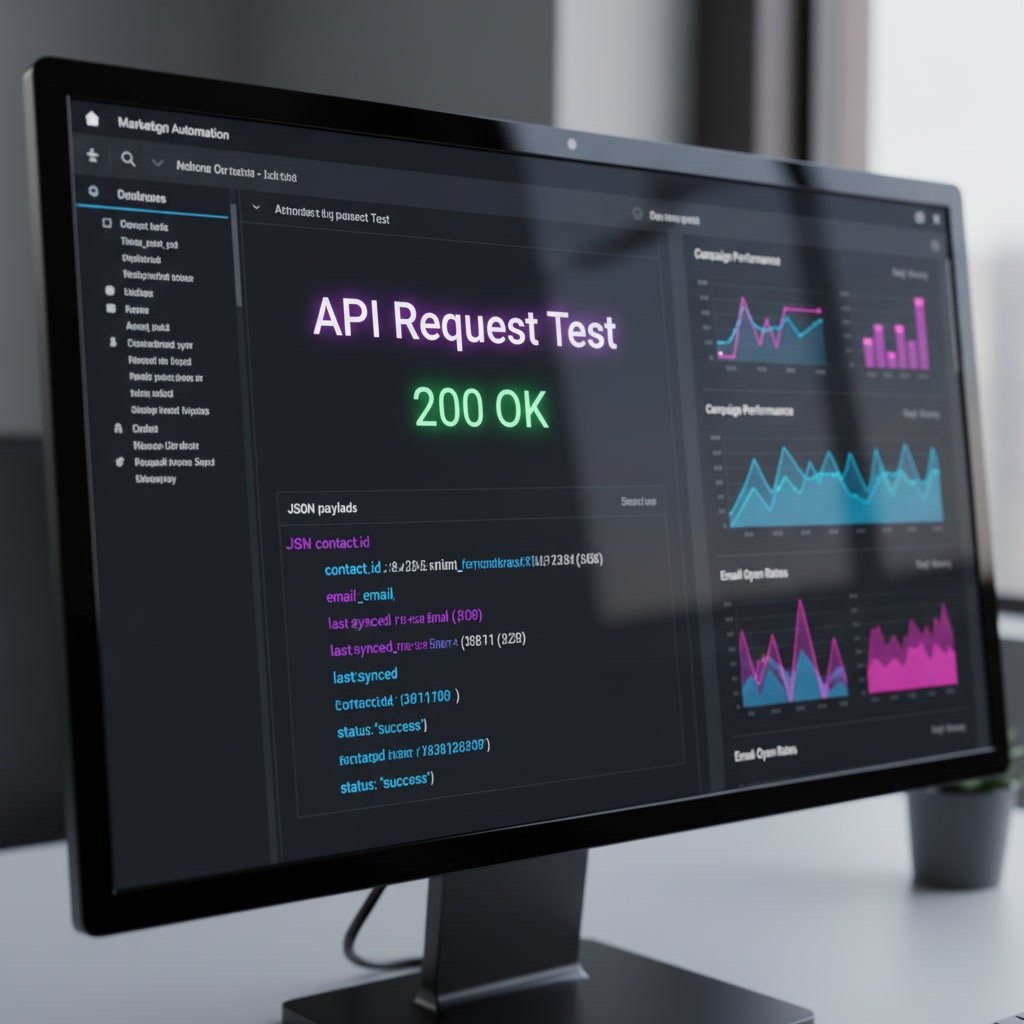
Do not begin with a full contact sync or a complex automation trigger. Instead, test one basic endpoint with a tool like Postman or your platform’s built-in API tester. A small, valid request helps isolate whether the connection itself works.
If the simple request succeeds, the issue is probably in your payload structure, field mapping, or workflow logic rather than the overall API connection.
4. Inspect the status code
HTTP status codes give you strong clues:
- 401 usually means authentication failed
- 403 often points to restricted access or permission problems
- 404 commonly means the endpoint is incorrect
- 422 often signals invalid request data
- 429 means you hit a rate limit
- 500-level responses may indicate a temporary server-side issue
Do not ignore the response body. It often includes the exact field or condition causing the failure.
5. Validate payload formatting
If you are sending contact data, custom fields, tags, or automation events, check that the JSON structure matches the endpoint requirements. Pay close attention to:
- Correct property names
- Required nested objects
- Valid email formats
- Expected field IDs or field names
- Proper content type headers
A request that looks almost right can still fail if one field is incorrectly structured.
6. Review logs on both sides
If you are using a plugin, middleware service, or custom application, check its logs too. One system may be retrying, transforming, or blocking the request before it reaches ActiveCampaign. In some cases, web server firewalls, security plugins, or hosting-level filters can interfere with outbound API calls.
Use Cases Where API Problems Commonly Show Up
Website form submissions
A form may appear to submit correctly on the front end, but the contact never arrives in ActiveCampaign. This is often caused by a plugin conflict, a missing API field mapping, or a validation problem in the request payload.
CRM and sales pipeline sync
If deals or contact updates stop moving between systems, the issue may come from object mapping changes, revoked credentials, or field mismatches after a CRM update.
Ecommerce customer syncing
Stores often depend on real-time or scheduled syncs for customer records, tags, purchase events, and abandoned cart workflows. When the API connection fails, the impact may be delayed segmentation, broken automation triggers, or incomplete customer history.
Custom internal applications
In-house tools tend to be flexible but fragile if documentation is not maintained. A developer may hardcode an older endpoint version, omit retries, or fail to surface errors to the team, making the issue harder to detect until data gaps appear.
Best Practices for Stable API Integrations
Use a sandbox-style testing process
Before pushing changes live, test requests in a controlled environment. Even if you do not have a formal sandbox, you can validate against a limited workflow or test list before touching production data.
Log every request and response
A quiet integration is risky. Store timestamps, endpoints, status codes, and response messages so you can diagnose problems quickly. Good logs turn a vague sync issue into a specific, fixable event.
Build retry logic carefully
Temporary failures happen. If a request times out or returns a transient error, a limited retry system can help. Just be careful not to create endless retries that trigger rate limits or duplicate actions.
Monitor rate limits and request volume
If you are syncing large batches or running frequent background jobs, space out requests and batch updates where possible. A stable integration is usually one that respects volume limits rather than pushing every event instantly.
Keep field mappings documented
Custom fields, tags, lists, and automation triggers can change over time. Document how your systems connect so future updates do not silently break the integration. This is especially important when multiple tools write to the same contact record.
Test after account or plugin changes
Any change to your ActiveCampaign account setup, WordPress plugin stack, CRM connector, or server environment can affect the API. A quick test after updates can prevent long periods of unnoticed failure.

Common Mistakes That Cause Ongoing API Errors
Assuming the platform is down
It is easy to blame the service first, but most API issues are local configuration problems. Always rule out key, URL, formatting, and mapping errors before assuming a broader outage.
Using the wrong account credentials
Teams that manage multiple brands or client accounts often mix up API keys and endpoints. Even experienced users do this when moving quickly between accounts.
Skipping raw response checks
If your tool only says “sync failed,” that is not enough. You need the actual status code and response body. Without it, you may spend hours adjusting the wrong part of the workflow.
Changing multiple variables at once
When troubleshooting, make one change at a time. If you replace the API key, rewrite the payload, and update the endpoint all at once, you will not know which fix actually solved the issue.
Ignoring third-party bottlenecks
Many users assume the API is broken when the middleware tool is the real problem. Queue delays, plugin conflicts, webhook failures, and webhook timeouts can all imitate an API issue.
Not planning for validation errors
Data quality matters. Invalid emails, unsupported characters, empty required fields, and mismatched custom values can all stop records from being accepted.
What to Do If the Problem Still Is Not Fixed
If you have checked the URL, API key, request structure, logs, and status codes but the problem persists, narrow the issue further:
- Test the same request outside your main app using Postman
- Try a known working endpoint before testing a complex one
- Temporarily disable security or caching layers that may block requests
- Review recent changes in plugins, middleware, hosting, or account settings
- Compare a failed request against API documentation or an older successful sample
- Contact support with the exact timestamp, endpoint, and error response
The more specific your evidence is, the faster support or your developer can identify the root cause.
FAQ
Why is my ActiveCampaign API key not working?
The most common reasons are an incorrect key, hidden spaces in the pasted value, using the key with the wrong account URL, or a recently changed credential that was not updated in the integration.
What does a 401 error mean in ActiveCampaign API requests?
A 401 response usually means authentication failed. Check the API key, request headers, and whether the request is being sent to the correct account endpoint.
Can ActiveCampaign API issues be caused by WordPress plugins?
Yes. Security plugins, outdated connectors, caching tools, and form plugins can interfere with API calls or send malformed data. Check plugin logs and test with unnecessary plugins disabled if possible.
How do I know if the issue is with ActiveCampaign or my integration?
Run a simple direct API test outside the integration. If the direct request works, the issue is likely in your plugin, middleware, code, or field mapping rather than ActiveCampaign itself.
What should I check first when contacts stop syncing?
Start with the API key, account URL, and recent changes to field mappings. Then inspect the response code and logs from the sending system to see whether the request was rejected, delayed, or never sent.
Can rate limits break my automation workflow?
Yes. If your system sends too many requests too quickly, some calls may be delayed or rejected. This can interrupt real-time automations, especially in larger sync jobs or bulk updates.
Final Verdict
If your ActiveCampaign API stops working, the best approach is not to guess. Start with the basics: confirm the endpoint, verify the API key, test a simple request, and read the exact response code. In most cases, the issue is a fixable setup detail rather than a deeper platform problem.
This topic matters most for teams using forms, CRM syncs, ecommerce workflows, or custom apps where even a short disruption can create data gaps. A calm, step-by-step troubleshooting process will usually get you back to a stable connection much faster than trial and error.
Recommended Guides
- Activecampaign Pricing Explained
- Activecampaign Alternatives
- Is Activecampaign Worth It
- ActiveCampaign Segmentation Guide: How to Target the Right Audience (2026)
- Activecampaign Campaign Builder Guide
- Activecampaign Integration Guide
- ActiveCampaign Email Delivery Tips: Improve Deliverability
- ActiveCampaign Automation Examples: Real Workflows Explained
- Activecampaign Login Not Working
- Activecampaign Contacts Not Syncing
- Activecampaign Campaign Not Sending
- Activecampaign Ultimate Guide