

ActiveCampaign integration not working is a common issue that can stop automations, break contact syncing, and disrupt your entire marketing workflow.
Affiliate disclosure: This article may contain affiliate links. If you purchase through these links, we may earn a commission at no additional cost to you.
How to Fix an ActiveCampaign Integration That Stops Working
If you are dealing with Activecampaign-integration-not-working issues, the good news is that most problems can be traced and fixed with a simple process.
Introduction
When an ActiveCampaign integration stops working, it can affect much more than one connection. Contacts may stop syncing, automations may fail to trigger, tags may not apply, and important follow-up messages can be delayed or missed.
This kind of issue is common across marketing stacks because integrations depend on several moving parts. A form tool, CRM, ecommerce platform, or automation connector may appear connected on the surface while something underneath has changed.
The most effective way to solve the problem is to troubleshoot in a structured order. Instead of guessing, it helps to check the connection source, permissions, field mappings, triggers, recent account changes, and error logs one step at a time.

Personal Insight
I have seen integration issues that looked serious at first but turned out to be small configuration gaps. In many cases, the connection was active, but a changed field, expired token, or broken trigger was silently stopping the workflow. A calm checklist usually works better than rushing into a full rebuild.
What Is
ActiveCampaign integration not working Really About?
This topic refers to any case where ActiveCampaign is no longer exchanging data correctly with another platform, app, plugin, or automation tool. The failure may be complete, where nothing syncs at all, or partial, where some data passes through while other actions fail.
For example, a website form may still submit successfully, but the new contact never appears in ActiveCampaign. In another case, contacts may sync, but tags, custom fields, or automation entries never happen. These smaller failures are easy to miss because the integration may still look connected in the dashboard.
Understanding the difference between a connection issue and a workflow issue matters. A connection issue usually means the systems cannot talk to each other. A workflow issue means the systems are connected, but the intended action is not being completed.
Key Features to Check When Troubleshooting
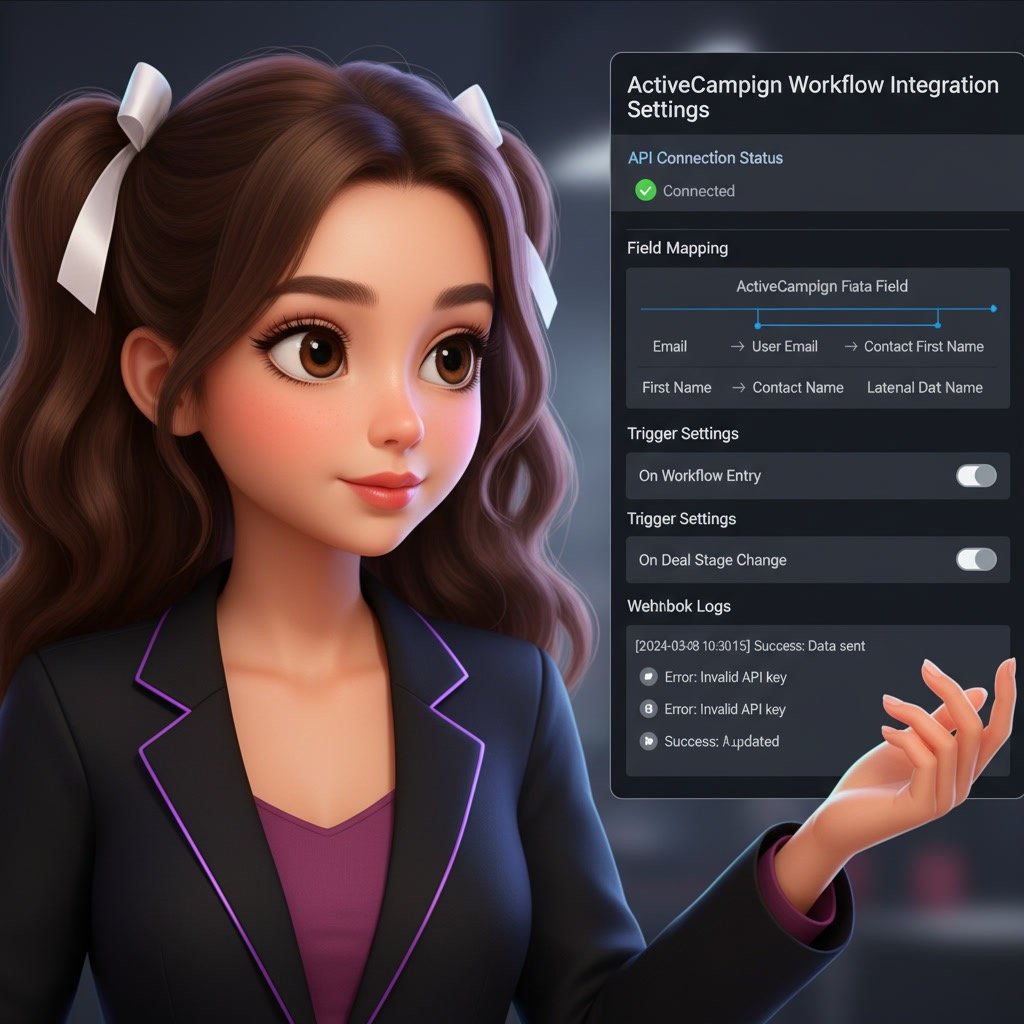
When troubleshooting an ActiveCampaign integration, always start by verifying the connection status to ensure the service is properly connected. Check for common error messages such as Unauthorized, Invalid API Key, or Connection timeout, as these often point directly to authentication or configuration problems. Next, confirm that all credentials and integration settings are correct, including API keys, account URLs, and permission levels. Even small changes, such as regenerating an API key or updating user roles, can disrupt the connection. Reconnecting the integration or refreshing the authentication details often resolves the issue quickly.
Connection status and authentication
Start with the most basic layer. Many integration failures happen because an API key, access token, webhook URL, or app permission has changed. This is especially common after password updates, account migrations, plugin updates, or security resets.
Check whether the integration still shows as active in both systems. If possible, reconnect it cleanly rather than assuming the old authorization is still valid.
Field mapping
Field mapping tells one platform where to place incoming data in ActiveCampaign. If a required field is renamed, removed, or changed in type, syncing may break. This often affects phone numbers, custom fields, dropdown values, and consent fields.
Even when the integration stays connected, wrong field mapping can cause blank records, missing values, or failed automation conditions.
Trigger settings
Many integrations depend on a specific event, such as a form submission, purchase, booking, or tag update. If the trigger is disabled, modified, or no longer matches the actual action, nothing moves forward.
It is worth checking whether the trigger still exists and whether it fires under current conditions.
Automation entry conditions
Sometimes the integration works, but the contact never enters the intended automation. This can happen when entry conditions are too narrow or conflict with new filters, lists, or tags.
A contact might be created successfully but still not receive the expected email sequence because the automation requires a condition that is no longer being met.
Error logs and sync history
If the connected platform offers logs, review them early. Logs can show whether data was rejected, delayed, duplicated, or blocked. This saves time because you can see whether the failure happened before ActiveCampaign received the data or after it arrived.
Platforms like Zapier, Make, WordPress plugins, ecommerce tools, and custom apps often provide task history or webhook records that point directly to the problem.
Use Cases Where Integration Problems Show Up Most Often
Website forms not sending leads
This is one of the most frequent complaints. A visitor fills out a form, but the contact never reaches ActiveCampaign. Common causes include broken plugin authentication, form updates, spam filtering conflicts, field mismatches, and webhook failures.
Ecommerce orders not syncing
Stores often connect ActiveCampaign for abandoned cart emails, order follow-up, segmentation, and customer tagging. If the ecommerce integration stops syncing, automations tied to purchase behavior may stop running or produce incomplete customer records.
CRM and sales pipeline updates failing
Teams that rely on contact syncing between a CRM and ActiveCampaign may notice outdated records, missing notes, or incorrect lifecycle stages. This can affect both marketing and sales workflows.
Third-party automation tools not passing data
When tools like Zapier or Make sit between systems, the issue may come from the middle layer rather than ActiveCampaign itself. A task could be paused, filtered out, or failing after a recent app change.
Membership and course platforms losing contact updates
Creators and educators often use integrations to add tags, grant access, or trigger onboarding emails. If contact events stop syncing, users may not receive welcome messages or course-related automation at the right time.
Best Practices for Finding the Real Cause
Test one action from end to end
Instead of reviewing everything at once, run one clean test. Submit one form, create one dummy order, or trigger one sample event. Then trace exactly what happens at each step.
This makes it easier to isolate whether the problem starts in the source app, the middleware tool, or ActiveCampaign.
Confirm what changed recently
Integration issues often begin after a recent change. Ask these questions:
Was the plugin updated? Was a field renamed? Was an account permission changed? Did a website move to a new domain? Was a new automation published?
A recent change is often the fastest clue.
Reconnect before rebuilding
Many users jump straight into rebuilding an integration from scratch. That can work, but it may also introduce new errors. In many cases, simply disconnecting and reconnecting the app with fresh credentials resolves the problem faster.
Review required fields carefully
If the source platform is not sending a value that ActiveCampaign expects, the sync may fail or create incomplete records. Email address formatting is especially important, but custom field requirements can also cause trouble.
Check duplicate and filter rules
Sometimes the data arrives, but it looks like nothing happened because duplicate rules merged the contact into an existing profile. In other cases, filters prevent the automation from running for returning users or contacts already on a list.
Use logs instead of guesswork
If a platform gives you a task history, error report, or webhook response, use it. Clear logs are often more useful than visual settings pages because they show the exact point of failure.
Common Mistakes That Slow Down Troubleshooting
Assuming the problem is always in ActiveCampaign
The failure might come from the source tool, the connector, the server environment, or a plugin conflict. If the event never leaves the original app, ActiveCampaign cannot process it.
Testing with old contacts only
Some automations are set to run once or only on first entry. If you keep testing with the same contact, it may appear broken when the system is simply following existing rules. New test contacts usually give more reliable results.
Ignoring silent field errors
A form can appear to submit normally while a hidden field or custom value fails in the background. This creates partial success, which is one of the hardest issues to spot without logs.
Changing too many settings at once
If you edit triggers, fields, permissions, tags, and automations all at the same time, it becomes difficult to identify what fixed the issue. Make one change, test it, then move on if needed.
Skipping permission checks
Access permissions are easy to overlook. An integration may have worked under an admin account but stop working after ownership or access roles change.
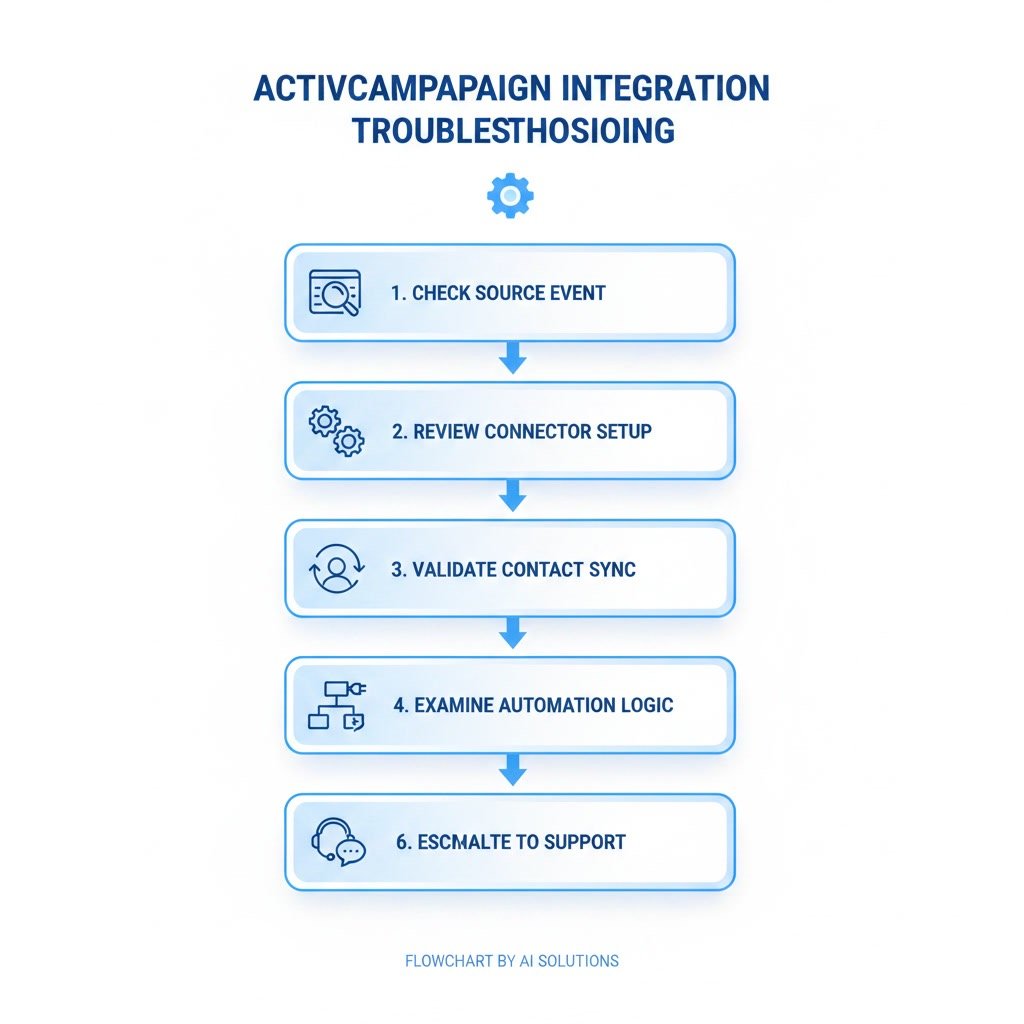
A Practical Troubleshooting Workflow
Step 1: Verify the source event
Make sure the original action actually happened. Did the form submit? Did the order complete? Did the booking tool send the webhook? If not, start there.
Step 2: Check the connector layer
If you use a plugin, app connector, Zap, or scenario tool, review its task history. Look for failed runs, paused tasks, expired authentication, or filtered events.
Step 3: Confirm data reaches ActiveCampaign
Search for the test contact inside ActiveCampaign. If the contact exists, compare expected fields, tags, list membership, and automation status.
Step 4: Review automation logic
If the contact is present but nothing else happens, the issue may be in automation entry rules, wait conditions, split paths, or list logic.
Step 5: Reconnect and retest
Refresh authentication, save settings again, and run another test with a new contact. This simple step often resolves token-related issues.
Step 6: Escalate with evidence
If the issue still remains, contact support with screenshots, timestamps, sample records, and error messages. A precise support request gets faster results than a general report that says the integration is not working.
When to Fix It Yourself and When to Ask for Help
If the issue is limited to a token refresh, field remap, or trigger adjustment, most users can solve it without advanced technical help. If the problem involves custom API calls, server logs, webhook failures, or conflicts between multiple tools, it may be better to involve a developer or platform support team.
The key is knowing where the breakdown happens. Once you can identify the exact stage, the next action becomes much clearer.
FAQ
Why did my ActiveCampaign integration stop working suddenly?
Sudden failures usually happen after an update, credential expiration, permission change, field edit, or trigger adjustment. Even a small settings change can interrupt syncing.
How do I know if the problem is in ActiveCampaign or the other app?
Run a test and check logs in both systems. If the source app never sends the event, the problem starts there. If the event is sent but not processed correctly afterward, then review ActiveCampaign settings and automation logic.
Can reconnecting the integration fix the issue?
Yes, in many cases it can. Refreshing the connection can solve expired tokens, outdated permissions, and incomplete authentication problems.
Why are contacts syncing but automations are not running?
This usually means the connection works, but the automation entry conditions are not being met. Check tags, list subscriptions, filters, timing rules, and whether the contact has already passed through the automation before.
What should I check first when a form is not sending leads to ActiveCampaign?
Start with form submission logs, plugin connection status, required field mapping, spam settings, and whether the contact appears anywhere in ActiveCampaign after a fresh test.
Do duplicate contact rules affect integrations?
Yes. If a contact already exists, ActiveCampaign may update the existing profile rather than create a new one. That can make it seem like the integration failed when the data was simply merged.
Final Verdict
An ActiveCampaign integration problem is usually less about one dramatic failure and more about one broken point in a chain. The most reliable approach is to test the full path, confirm what changed, review field mapping and triggers, and use logs wherever possible.
This topic is especially useful for marketers, site owners, ecommerce teams, and operations users who depend on ActiveCampaign for timely automations and accurate contact data. If you follow a structured troubleshooting process, most integration issues become much easier to diagnose and fix.
Overall, the best option depends on your goals, budget, and workflow. Choose the solution that your team can use consistently and effectively.
Recommended internal links
If you’re still optimizing your setup or planning your next steps, these guides will help you get more value from your ActiveCampaign account.
- ActiveCampaign Pricing Explained
- ActiveCampaign Alternatives
- Is ActiveCampaign Worth It
- ActiveCampaign Tutorial For Beginners
- ActiveCampaign Setup Guide
- ActiveCampaign Automation Examples: Real Workflows Explained
- Best Email Marketing Tools in 2026
- ActiveCampaign CRM Guide
- ActiveCampaign Segmentation Guide: Target the Right Audience
- ActiveCampaign Campaign Builder Guide
- ActiveCampaign Integration Guide
- ActiveCampaign Ultimate Guide
 SolutionsHub Team