

This ActiveCampaign campaign builder guide explains how to build cleaner, more effective email campaigns inside ActiveCampaign.
Affiliate disclosure: This article may contain affiliate links. If you purchase through these links, we may earn a commission at no additional cost to you.
Introduction
ActiveCampaign gives you a lot of flexibility when creating email campaigns, but that flexibility can feel confusing at first. The campaign builder includes layout tools, content blocks, personalization options, design settings, testing features, and sending controls all in one place.
If you are new to the platform, it is easy to focus only on how the email looks. In practice, the builder matters just as much for message clarity, segmentation, mobile readability, and campaign performance. A well-built campaign is not just attractive. It is easier to read, easier to maintain, and more likely to support your goals.
This guide walks through what the campaign builder does, which features matter most, how to use it for real marketing tasks, and what mistakes to avoid if you want smoother results.
Personal Insight
When I first worked with ActiveCampaign, the campaign builder felt more capable than many basic email editors, but it also required a little discipline. The biggest improvement came from simplifying layouts and thinking about the reader first. Once the structure was cleaner, everything from click rates to editing speed became easier to manage.

What Is the ActiveCampaign Campaign Builder Guide Really About?
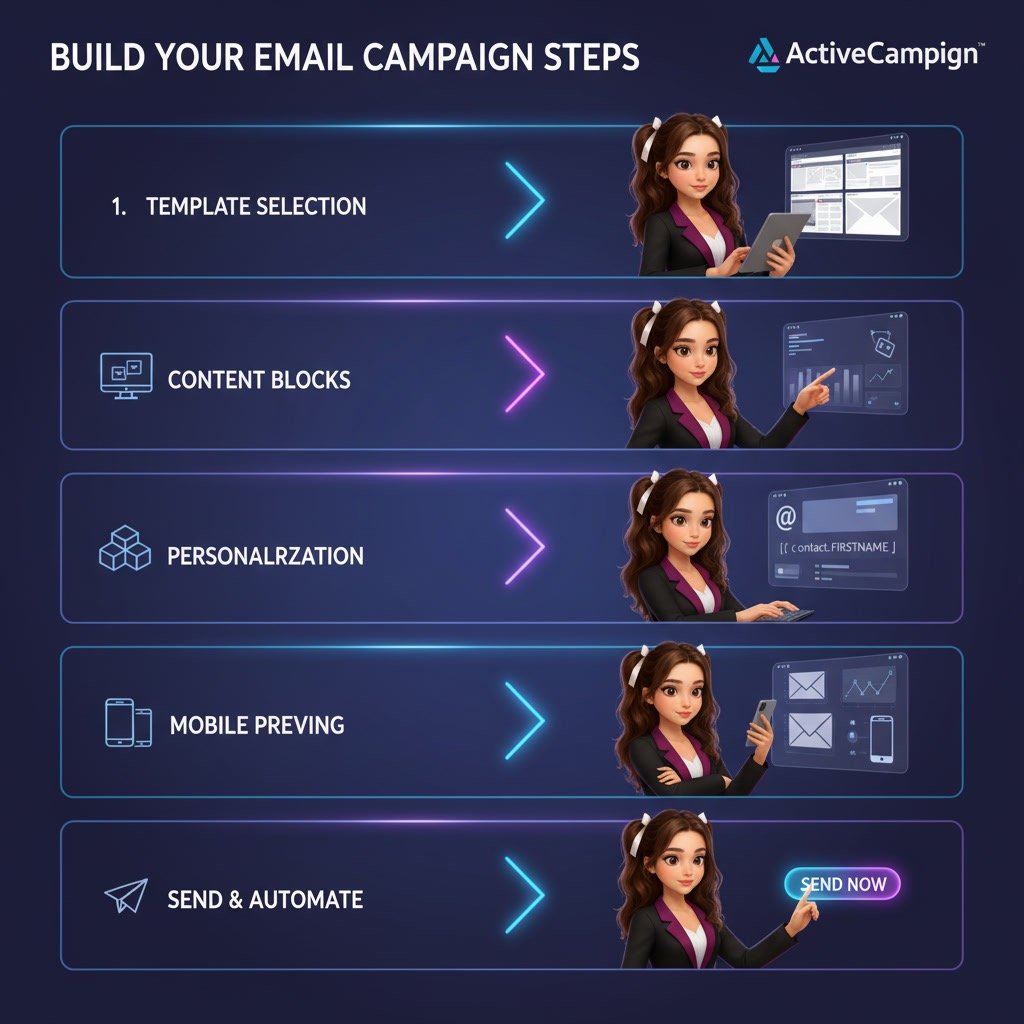
The campaign builder is the workspace inside ActiveCampaign where you create and edit email campaigns. It is where you choose a template, add content blocks, format text, insert images, personalize sections, and prepare the email for sending.
Depending on your account setup, you may use the builder for one-time broadcasts, automated emails, promotional announcements, welcome sequences, product updates, event reminders, or simple newsletter formats. The same core editor supports many campaign types, which makes it important to understand how to use it well.
At a practical level, the builder helps you do five things:
- Create a professional email layout without coding
- Keep branding and formatting consistent
- Insert dynamic or personalized content
- Preview and test before sending
- Prepare campaigns that fit different audience segments
This is why the builder is more than a design tool. It is part of your overall email workflow.
Key Features
Drag-and-drop email design
The most visible feature is the drag-and-drop editor. You can place text blocks, images, buttons, dividers, spacers, product sections, and other content elements into your layout. This allows non-technical users to build structured emails quickly.
The real advantage is speed. Instead of building from scratch every time, you can reuse a familiar layout and adjust only the content that changes.
Templates and saved layouts
Templates help you start faster and maintain consistency. Some businesses use a regular newsletter structure, while others create separate templates for promotions, education emails, onboarding, and announcements.
Using saved layouts can reduce editing time and lower the risk of inconsistent branding across campaigns.
Personalization options
ActiveCampaign supports personalization fields such as first name, company name, and other contact data stored in your account. You can use these fields to make emails feel more relevant without manually customizing each one.
Good personalization is helpful, but it should feel natural. Adding a first name is fine. Rebuilding every sentence around a merge field usually adds complexity without improving the reader experience.
Conditional content
One of the more powerful features is conditional content. This allows you to show different sections of an email to different contacts based on tags, custom fields, actions, or segment rules. Instead of sending multiple versions of the same campaign, you can adapt one message for different audiences.
This is especially useful for mixed lists where new leads, active customers, and past buyers should not all see the same call to action.
Mobile preview and design control
A large share of emails are opened on mobile devices, so mobile readability matters. The builder lets you preview how the email may appear across devices and adjust spacing, image size, button placement, and text hierarchy.
If an email looks polished on desktop but awkward on a phone, performance often suffers. Short sections and clear buttons usually work better than dense, multi-column designs.
Testing and send preparation
Before sending, you can test subject lines, send test emails, review links, check formatting, and confirm audience settings. These final checks are easy to skip when you are busy, but they prevent many common mistakes.
Use Cases
Weekly newsletters
The campaign builder is well suited for recurring newsletters. You can create a repeatable structure with a headline, short intro, featured links, content blocks, and one primary call to action. This keeps the editing process efficient while helping subscribers know what to expect.
Product or offer announcements
If you launch products, services, or limited-time offers, the builder helps you present them clearly with headline sections, supporting text, images, and buttons. In these campaigns, clarity is more important than visual complexity.
Welcome emails and onboarding sequences
Many businesses use the same builder inside automations for welcome emails. A clean onboarding email might include a short introduction, one next step, helpful links, and a simple explanation of what the subscriber will receive next.
Event and webinar promotion
You can use the builder to create invitation emails, reminder emails, and follow-up messages for events or webinars. These campaigns often benefit from a very direct structure: event value, date and time, short speaker or topic summary, and a clear registration button.
Segment-specific campaigns
When combined with segmentation and personalization, the builder becomes much more useful. Instead of sending one broad message, you can create targeted versions for prospects, current customers, or contacts interested in a specific product category.

Best Practices
Start with one goal per email
Every campaign should have a primary purpose. That might be getting a click, sharing an update, driving registrations, or encouraging a reply. When an email tries to do too much at once, the layout becomes crowded and the message loses focus.
Keep the structure simple
Simple emails are usually easier to read and easier to manage. Use clear headings, short paragraphs, enough spacing, and one main call to action. A clean structure helps the reader scan quickly and understand what matters.
Design for mobile first
Short subject lines, concise copy, readable font sizes, and tap-friendly buttons matter. Even if you build on desktop, think about how each section will look on a narrow screen.
Use images carefully
Images can support the message, but they should not carry the entire message. If the key information exists only inside an image, readability and accessibility suffer. Keep important text in text blocks whenever possible.
Make buttons specific
Generic button text like “Click here” is weaker than clear action language. Buttons such as “Read the guide,” “Reserve your spot,” or “View the update” give readers a better reason to act.
Preview and test every time
Even experienced users benefit from final checks. Send a test email, open it on mobile, scan for formatting issues, and confirm every link. Small problems are much easier to fix before the campaign goes live.
Reuse proven layouts
If a campaign format works well, save that structure. Reusing layouts improves consistency and reduces production time. It also makes future campaigns easier for your team to edit.
Common Mistakes
Adding too many content blocks
It is tempting to use every available element in the builder, but more blocks do not automatically improve the campaign. Too many sections create visual noise and make the email harder to follow.
Overloading the email with links
If everything is linked, nothing feels important. Too many choices can reduce clicks on the action that actually matters. Prioritize one main next step and support it with only a few secondary links if needed.
Ignoring segment fit
A strong layout cannot fix a weak message-to-audience match. If a campaign is relevant to only part of your list, segment it properly before sending. This often matters more than any design adjustment.
Using long paragraphs
Email is not the place for dense blocks of text. Long paragraphs reduce readability, especially on mobile. Shorter sections help readers understand the message quickly.
Not checking personalization fields
Personalization errors can make emails look careless. If a first name field is missing or formatted incorrectly, the result may feel awkward. Always test how personalization renders before sending.
Focusing on appearance over clarity
Some emails look polished but still perform poorly because the offer, message, or action is unclear. The builder should support communication, not distract from it.
FAQ
Is the ActiveCampaign campaign builder good for beginners?
Yes, especially for users who want a visual editor instead of coding emails from scratch. There is a learning curve, but the drag-and-drop structure is approachable once you understand the main blocks and settings.
Can I use the builder for automated emails?
Yes. The same general editing experience can be used for campaigns inside automations, including welcome emails, follow-ups, reminders, and nurture sequences.
Does ActiveCampaign let me personalize emails in the builder?
Yes. You can use personalization fields, conditional content, and segmentation to make emails more relevant to different contacts.
Should I use a template or build from scratch?
For most users, starting with a template or saved layout is faster and more consistent. Building from scratch makes sense when you need a very custom format, but it often takes more time.
How many sections should a campaign email have?
There is no fixed number, but fewer is often better. A focused email with a clear goal usually performs better than a crowded email trying to present everything at once.
What matters most when using the builder?
The most important factors are message clarity, audience fit, mobile readability, and a strong call to action. Design helps, but strategy matters first.
Final Verdict
The ActiveCampaign campaign builder is a capable tool for creating emails that look professional and support a wide range of marketing workflows. Its real value is not just in drag-and-drop design, but in how it helps you organize content, personalize messages, and prepare campaigns more efficiently.
If you are a beginner, start with simple layouts and one goal per email. If you are more experienced, use segmentation, conditional content, and saved templates to make the builder work harder for your process. For most users, the best results come from keeping campaigns clear, relevant, and easy to read rather than trying to make every email visually complex.
Recommended Guides
- How To Use Activecampaign
- Activecampaign Tutorial For Beginners
- Activecampaign Setup Guide
- ActiveCampaign Segmentation Guide: Target the Right Audience
- ActiveCampaign Automation Examples: Real Workflows Explained
- Activecampaign Ultimate Guide