

If you are dealing with ActiveCampaign automation not triggering, the issue is usually tied to the trigger setup, contact eligibility, or a missed condition inside the workflow.
Affiliate disclosure: This article may contain affiliate links. If you purchase through these links, we may earn a commission at no additional cost to you.
Introduction
When an automation does not start in ActiveCampaign, it can feel confusing because everything may look correct at first glance. A form submits, a tag gets added, or a deal updates, but the contact never enters the automation.
In most cases, the problem is not random. It usually comes from a small rule, a contact mismatch, or a trigger setting that quietly blocks entry. Once you know where to check, the issue becomes much easier to solve.
This guide walks through the most common reasons an automation fails to trigger, how to troubleshoot them step by step, and what to do to prevent the same problem from happening again.
Personal Insight
One thing I have seen repeatedly with ActiveCampaign is that the platform is powerful, but small setup details matter a lot. A single condition like “runs once” or a missing list subscription can stop a workflow even when the automation itself looks perfectly built. The good news is that most trigger issues are fixable in minutes once you know where to look.

What Is the Topic
This topic focuses on troubleshooting automations that fail to start when a contact should enter a workflow. In ActiveCampaign, an automation begins when a trigger event happens, such as a tag being added, a form being submitted, a contact subscribing to a list, or a custom field changing.
If the trigger is not configured correctly, if the contact does not match the required conditions, or if the event happened before the automation was active, the contact may never enter. That creates a broken follow-up process, missed emails, and unreliable customer journeys.
The goal here is simple: identify why the entry event is not being recognized and make sure future contacts enter the automation consistently.
Why activecampaign-automation-not-triggering Happens
The trigger type does not match the actual event
This is one of the most common causes. For example, you may expect a form submission to start the automation, but the trigger is actually set to “tag is added.” If the contact never receives that tag, the automation will never begin.
Always confirm that the trigger you selected matches the exact action taking place in your process.
The automation is inactive
An automation must be active to accept new contacts. If it is still in draft mode or was accidentally turned off, contacts will not enter when the trigger happens.
This sounds basic, but it is worth checking first because it solves more issues than many users expect.
The contact no longer qualifies
Some automations include segment conditions at entry. A contact may complete the trigger event but still fail to enter because they do not meet list, tag, field, or status requirements.
For example, a tag may be applied successfully, but the automation also requires that the contact be in a specific list or have a field value that is not present.
The trigger is set to run only once
Many triggers in ActiveCampaign can be limited to one entry per contact. If the contact already entered the automation in the past, they may not be allowed to enter again even if the same event happens a second time.
This often causes confusion during testing because the first test works and later tests appear broken.
The event happened before the automation was published
Automations generally do not go back and capture past events unless they are manually added or the trigger supports that behavior in a specific way. If a tag was added yesterday and the automation went live today, that previous tag event may not start the workflow.
An integration is not passing data correctly
If your trigger relies on another tool, such as a form builder, checkout platform, CRM sync, or Zapier connection, the issue may be outside ActiveCampaign. The automation may be set up correctly, but the expected tag, field update, or list subscription is never reaching the contact record.
Key Features That Affect Automation Triggers
Start triggers
Every automation begins with a defined trigger. Common options include tag added, subscribes to list, submits form, opens email, clicks a link, field changes, makes a purchase, or reaches a date.
The quality of your automation depends heavily on choosing the right start condition.
Runs setting
Each trigger includes a setting that controls whether a contact can enter once or multiple times. If your workflow is meant to repeat, this setting matters. If it is meant to be one-time only, it should be restricted intentionally.
Segment conditions
ActiveCampaign lets you narrow who can enter with extra conditions. These are useful, but they also create failure points. If even one condition is too strict, valid contacts may be blocked from entering.
Contact activity timeline
The contact record is one of the best troubleshooting tools in the platform. You can review whether a tag was added, whether a form was submitted, whether a field changed, and whether the contact was added to an automation.
If the expected action is missing in the timeline, the problem likely starts before the automation itself.
Automation map and path logic
Even if a contact enters the automation, they can appear stuck if later conditions, waits, goals, or if/else branches move them unexpectedly. Sometimes users think the trigger failed when the contact actually entered and then jumped to another path.

Use Cases Where Trigger Problems Commonly Show Up
Lead magnet delivery
A contact submits a signup form expecting an instant email with a download link. If the form is not tied to the correct trigger or list action, the contact never enters the automation and does not receive the promised content.
Sales follow-up after form completion
A business may want every demo request to enter a sales nurture workflow. If the trigger depends on a tag from a third-party form tool and that tag is not syncing, new leads are missed.
Post-purchase automation
Ecommerce workflows often start after an order is placed. If the store integration is delayed, disconnected, or mapped incorrectly, the automation may not start even though the purchase occurred.
Re-engagement campaigns
Some automations begin when a field changes or when a contact meets inactivity rules. If the trigger logic is based on outdated fields or inconsistent tagging, the workflow may not fire for the right audience.
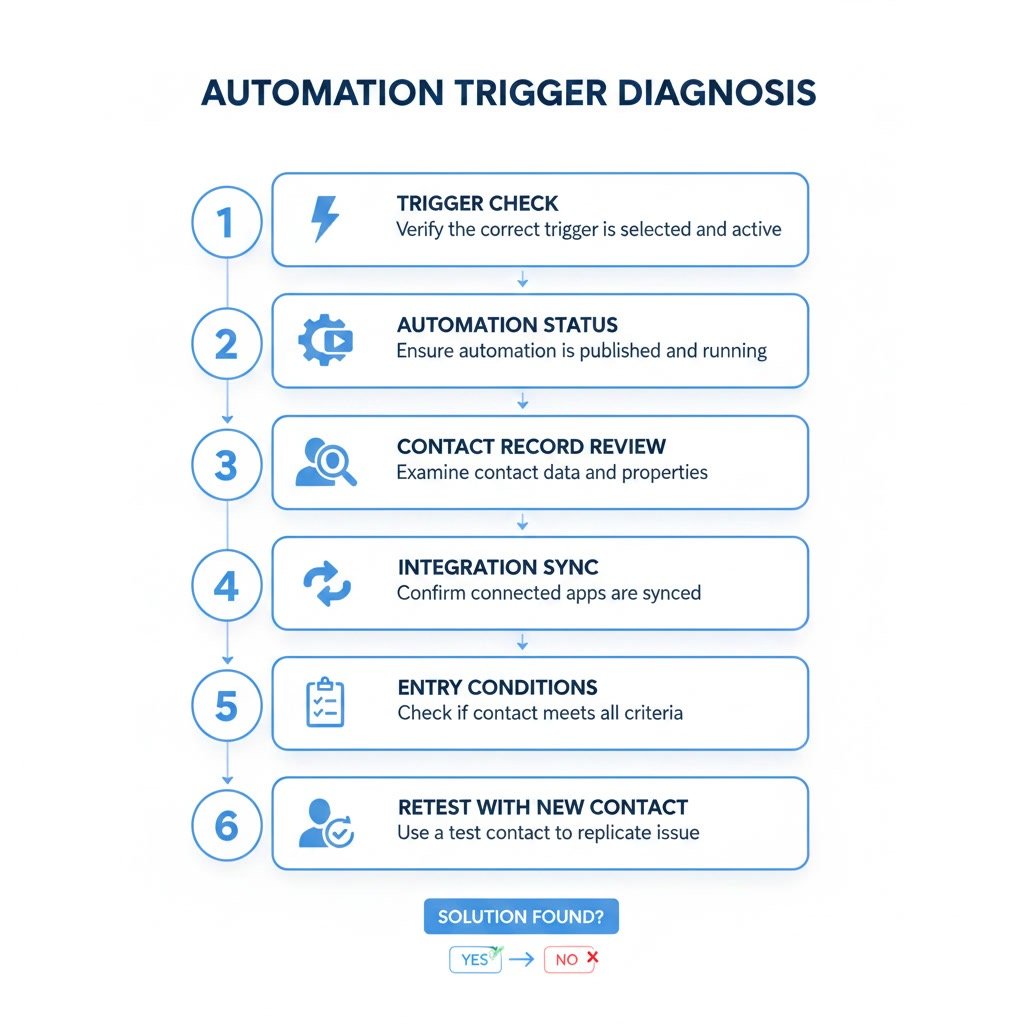
How to Troubleshoot Step by Step
1. Confirm the automation is active
Open the automation and make sure it is turned on. If it is inactive, activate it and retest with a new contact event.
2. Review the exact start trigger
Check the automation entry point and verify that it matches the real event. If your process starts with a form submission, use that trigger or confirm that the form action applies the tag your automation expects.
3. Inspect the contact record
Open the affected contact and review their recent activity. Look for the expected tag, list subscription, field update, purchase event, or form submission. This helps you confirm whether the event actually happened.
4. Check trigger limits
If the contact was already in the automation before, the trigger may be set to run only once. Switch it to allow multiple entries only if that makes sense for the workflow.
5. Test with a completely new contact
Testing with the same email can create false results because of prior automation history. Use a fresh test contact to see whether the trigger works from a clean starting point.
6. Review segment conditions carefully
If the automation has entry filters, read each condition one by one. Make sure the contact truly meets all of them. Small details like list status, capitalization in fields, or missing values can block entry.
7. Check connected tools
If a form plugin, checkout system, or integration is involved, verify that data is arriving in ActiveCampaign correctly. Look for failed syncs, broken mappings, or missing automation-related actions.
8. Add contacts manually for diagnosis
As a test, manually add the contact to the automation. If they move through the workflow normally after manual entry, the issue is likely limited to the trigger and not the rest of the automation.
Best Practices
Use simple trigger logic first
Start with one clean trigger before adding layered conditions. This makes testing easier and reduces hidden points of failure.
Name automations clearly
Use descriptive names that mention the purpose and trigger source, such as “Lead Magnet – Form Submission” or “Demo Request – Tag Added.” This makes it easier to audit your system later.
Document what should happen at entry
Write down the exact event that should start the automation. Include which form, tag, field, or integration is involved. This helps when multiple people manage the account.
Test with fresh contacts every time
New contacts reveal whether the current setup works as intended. Reusing old test contacts can hide trigger settings like one-time entry limits.
Keep tagging rules consistent
If one automation expects a tag format and another team member uses a different naming pattern, trigger logic becomes unreliable. A clear tag structure improves stability.
Audit automations after integration changes
If you switch form tools, update your checkout, or change field mappings, review any automation that depends on those actions. A small integration update can break a trigger chain.
Common Mistakes
Assuming the contact entered when they actually skipped ahead
Goals, waits, and conditions can move contacts in ways that are easy to miss. Always confirm the contact’s automation path before deciding the trigger failed.
Using the wrong tag or list
Similar names can cause confusion, especially in larger accounts. A contact may receive “webinar-interest” while the automation waits for “webinar_registered.”
Forgetting about one-time entry settings
This is a frequent testing mistake. The trigger worked the first time, but the same contact cannot enter again, making it look like the automation stopped working.
Turning on the automation after the event already happened
If the event occurred before the automation was active, contacts may not enter automatically. Timing matters more than many users realize.
Overcomplicating entry conditions
Adding too many filters at the start can make troubleshooting harder. If possible, let the contact enter on one clear event and sort them inside the automation afterward.
FAQ
Why is my ActiveCampaign automation not starting after a tag is added?
The most likely reasons are that the wrong tag was applied, the automation is inactive, the contact already entered once before, or the trigger includes conditions the contact does not meet.
How do I know if the trigger event actually happened?
Open the contact record and review the activity stream. You should see the tag addition, form submission, field update, or subscription event there. If not, the issue may be with the integration or setup before the automation.
Can a contact re-enter an automation?
Yes, but only if the trigger is configured to allow multiple entries. If it is limited to once, that same contact will not re-enter after completing or leaving the automation.
Why does my test fail but real contacts seem fine?
This often happens when you use the same email address repeatedly. Past activity, existing tags, or previous automation entry can affect the test result. A new test contact gives cleaner feedback.
What if the form submission is visible but the automation still does not fire?
Check whether the automation trigger is tied directly to that form or to a separate action, such as a tag being added after submission. The form may work correctly while the trigger logic points to something else.
Should I rebuild the automation if it is not triggering?
Usually no. Most issues are related to trigger setup, conditions, or data flow rather than a broken automation structure. Troubleshooting the entry logic first is almost always the better move.
Final Verdict
If an ActiveCampaign automation is not triggering, the issue is usually practical rather than mysterious. Start by checking whether the automation is active, whether the trigger matches the real event, whether the contact qualifies, and whether the event happened after the automation was turned on.
This topic matters most for marketers, small business owners, and teams that rely on automated follow-up. Once you build a habit of checking trigger settings, contact activity, and integration behavior, these problems become much easier to solve and prevent.
Affiliate disclosure: This article may contain affiliate links. If you purchase through these links, we may earn a commission at no additional cost to you.
Recommended Guides
- Activecampaign Pricing Explained
- Activecampaign Alternatives
- Is Activecampaign Worth It
- How To Use Activecampaign
- Activecampaign Tutorial For Beginners
- Activecampaign Setup Guide
- ActiveCampaign Automation Examples: Real Workflows Explained
- Best Email Marketing Tools in 2026
- Activecampaign Crm Guide
- ActiveCampaign Segmentation Guide: Target the Right Audience
- Activecampaign Campaign Builder Guide
- Activecampaign Ultimate Guide